Have you ever wondered, when you are using Universal Resource Scheduling to schedule your requirements or work orders and are searching for a requirement, which view the Schedule Assistant displays in?
Well, it is determined by either the point of entry into the Schedule Assistant (Find Availability on the Schedule Board or Book on the entity form) or the duration of the requirement:
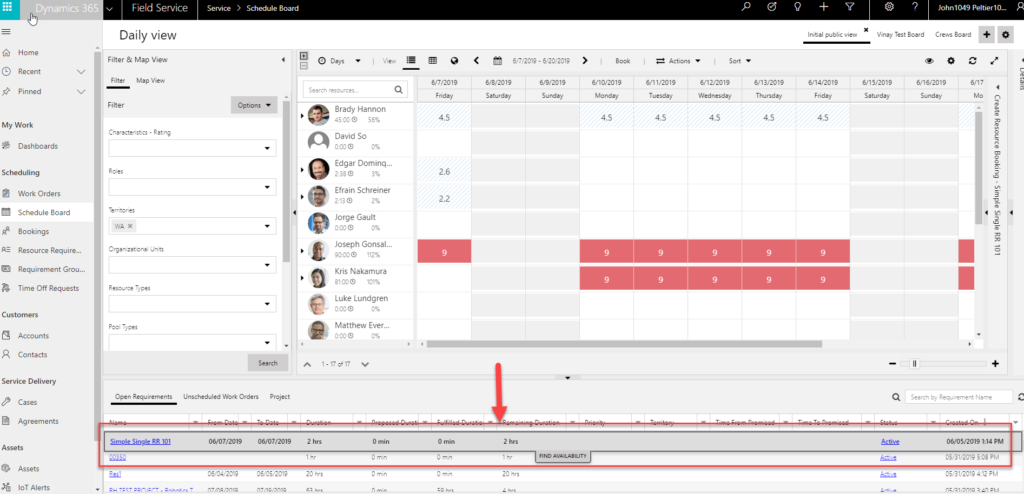
- Find Availability: If you use Find Availability, you will land in a view based on the current view on the Schedule Board. For example, if you are in List view on the Schedule Board, doing Find Availability on a requirement will land you in List view. Otherwise, based on the duration on the requirement, your view mode will be determined to be Hourly/Daily/Weekly/Monthly views on the Schedule Assistant. If the duration of the requirement is less than 24 hours, view mode will be Hourly; if the duration of the requirement is less than 7 days, then the view mode will be Daily, and so on.
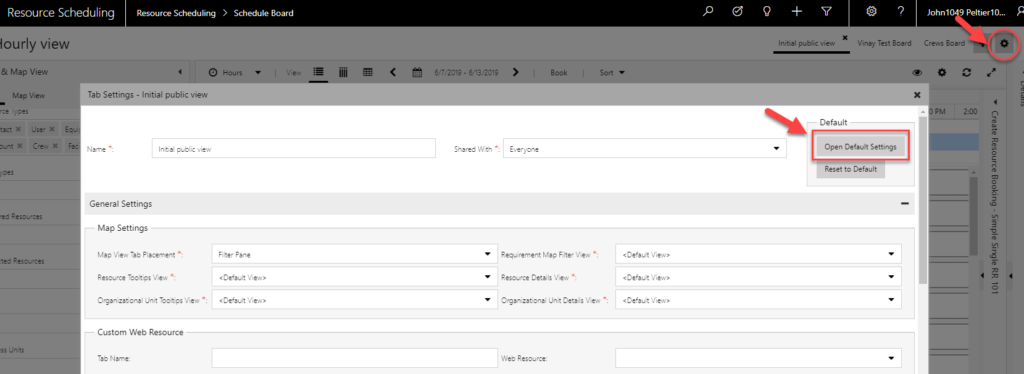
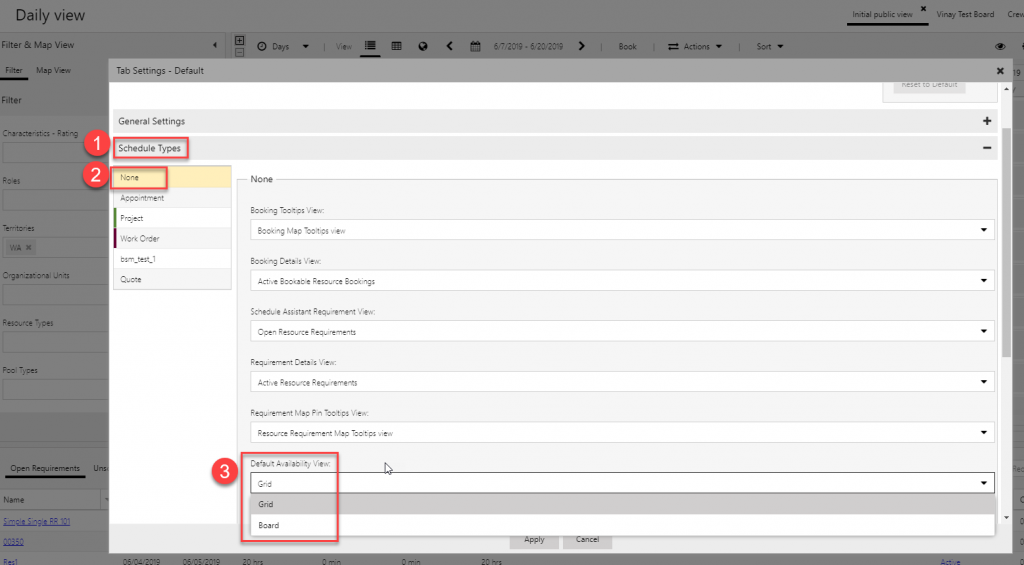
- Book button on a requirement: If you use the Book button on a requirement or a schedulable entity, the landing view is configurable. You can access the tab settings on the Schedule Board and then open the default tab settings as shown below. Under Schedule Types, None for a requirement, you can see the Default Availability View. If a grid is selected, whenever Schedule Assistant is invoked via the Book button, it will land the user on List View, and if Board is selected, as explained above, based on the duration of the requirement, the landing view will be the Hourly/Daily/Weekly/Monthly views on Schedule Assistant.
Vinay Nalam
Program Manager, Dynamics 365 Engineering