
We’re excited to announce that Microsoft-managed SSL/TLS certificates are now available for custom domains in Power Pages.
When you connect a custom domain, you can now choose an SSL/TLS certificate that Microsoft provisions, configures, and renews for you. You do not need to purchase a certificate, upload a PFX file, or track the certificate’s renewal date. This option is now available in the ‘Connect Custom Domain’ wizard in the Power Platform Admin Center (PPAC).
What’s new
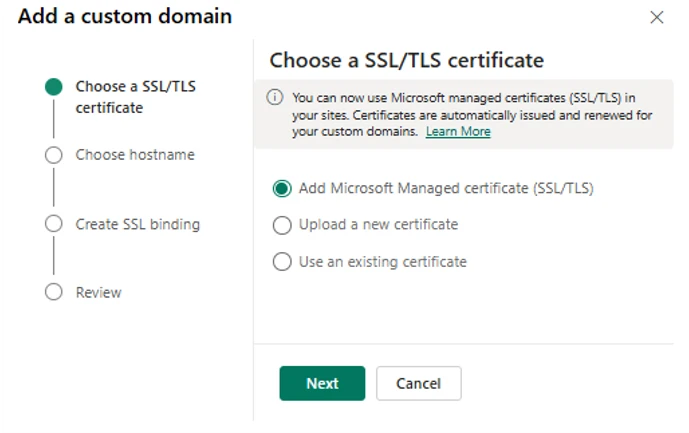
- Microsoft-managed certificates are now available in the ‘Choose an SSL/TLS certificate‘ step in the ‘Connect Custom Domain’ wizard, alongside the options to upload a new certificate or use an existing one. Power Pages provisions the certificate for the host name you enter, and configuration typically completes in a few minutes.
- Automatic certificate management handles provisioning, configuration, and renewal, so you no longer need to track certificate expiry dates.
- Support for existing custom domains: Sites using an uploaded certificate can move to a Microsoft-managed certificate at any time.
Why this matters
- No certificate procurement means you no longer need to buy a certificate, export it as a password-protected PFX file with the required encryption and key length, and upload it to Power Pages.
- Lower risk of expired certificates helps avoid browser warnings on live, customer-facing sites through automatic renewal.
- Faster custom domain setup lets you connect a domain in the admin center without completing a separate certificate procurement and upload process.
- Continued certificate choice preserves support for bring-your-own certificates. Existing sites are not migrated automatically and continue to operate without any impact.
How to get started
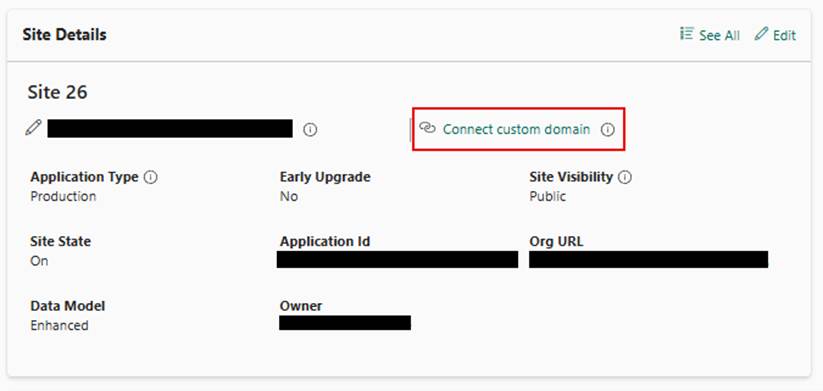
Step 1: In the Power Platform admin center, go to Manage > Power Pages. Select your site, select Manage, and then select Connect Custom Domain in Site Details section.
Step 2: Select Add Microsoft Managed certificate, and then select Next.
Step 3: Enter the host name, validate the domain, review and finish. Configuration can take a few minutes.
How to migrate to Microsoft-managed SSL/TLS certificate
If you want to migrate to Microsoft-managed SSL/TLS certificates for an existing custom domain, remove the current SSL binding and certificate, then reconnect the domain by selecting ‘Add Microsoft Managed certificate’.
Learn more
Add a custom domain name. https://learn.microsoft.com/en-us/power-pages/admin/add-custom-domain
We’d love to hear your feedback! Share your thoughts in the Power Pages community forum.