Applies to AX 2012 R2 & AX 2012 R3
Consider the following scenario:
When a form is created in AX 2012 RTM or AX 2012 R2 and a ManagedHost control is added on its design, like “Microsoft.Dynamics.AX.Framework.Client.Controls.ChartToolBar”.
Then when the form is deployed on a newer AX version, e.g. AX 2012 R3 environment, the form no longer opens but throws the following exception:
Could not load file or assembly ‘Microsoft.Dynamics.AX.Framework.Client.Controls, Version=6.2.0.0,
Culture=neutral, PublicKeyToken=31bf3856ad364e35′ or one of its dependencies. The located assembly’s manifest definition does not match the assembly reference.
(Exception from HRESULT: 0x80131040)
To resolve the above addressed issue, especially in an upgrade scenario where many forms are affected, you can do the following:
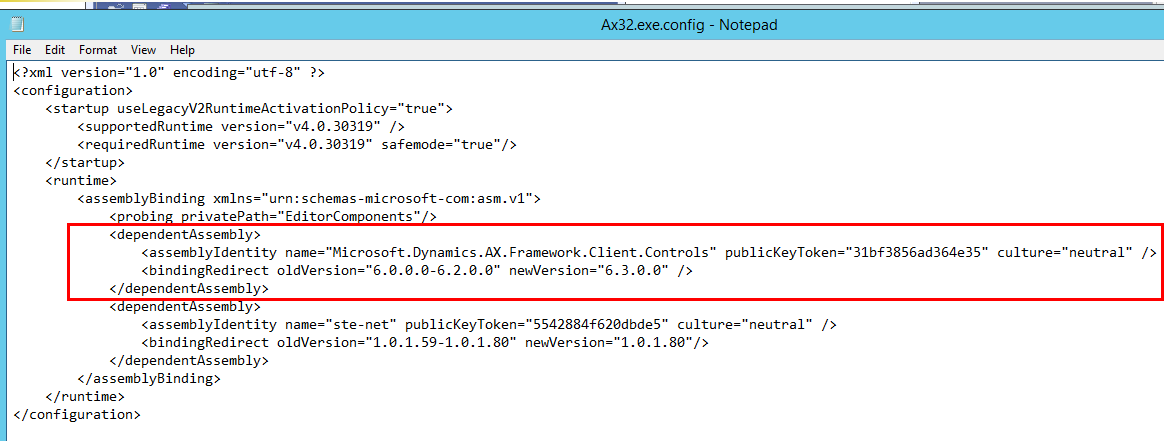
Adding new assembly bindings into Ax32.exe.config to redirect 6.0.0.0 and 6.2.0.0 references to 6.3.0.0 assembly.
Here is what precisely you need to do:
- Shutdown your AX client
- Find the “Ax32.exe.config” file under your Client\Bin directory, normally under “C:\Program Files (x86)\Microsoft Dynamics AX\60\Client\Bin”
- Edit the file in Notepad and add the following assembly binding (Highlighted in yellow).
- Save the file, but please make sure to keep it in the original format
- Start AX client and try your scenario
The Ax32.exe.config file content will look like the following after the changes: