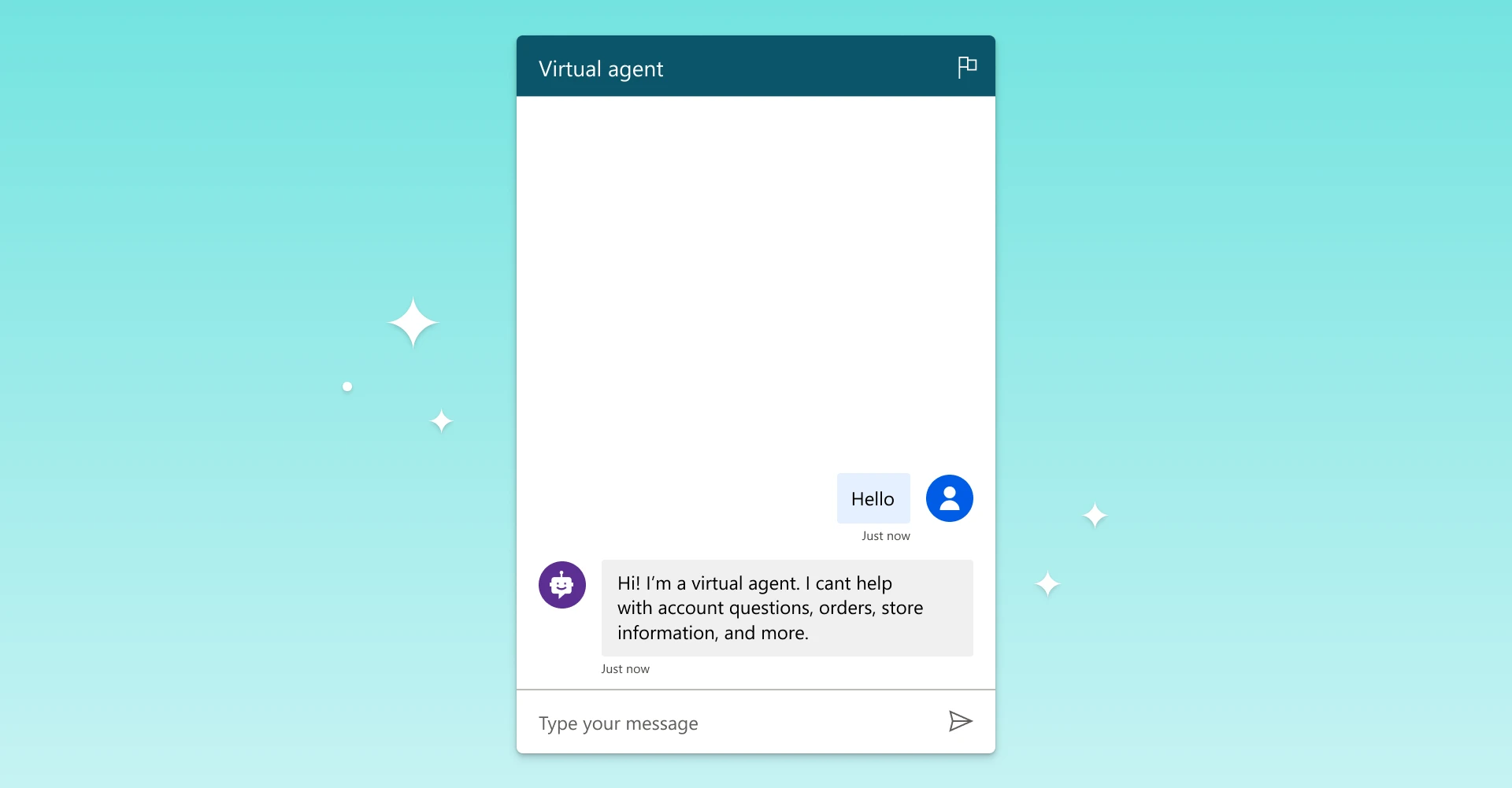
Power Virtual Agents empowers you to quickly and easily create powerful bots using a guided no-code graphical experience — all without the need for data scientists or developers. After you create and publish a bot, your customers use the bot’s canvas to interact with your bot. Today, the default canvas is not customizable out-of-the-box. For example, you cannot change a bot icon or bot name using the Power Virtual Agents portal.
To customize the default canvas, we have an advanced solution that requires software development. Our guidance for this solution is for experienced IT professionals, such as IT admins or developers who have a solid understanding of developer tools, utilities, and IDEs. To learn more about this advanced solution, go to the customize and host your chat canvas documentation.
However, it is hard for a business user to use the above advanced solution without involving their IT department. In this blog, we will show you a simpler way to create a custom canvas. You can copy-paste the HTML code in your tools (for example, Website, Intranet, or blog) of choice where you want to show the custom canvas. You can learn the following,
- Configure the canvas with your bot
- Change the bot icon
- Change the bot name
Configure the canvas with your bot
- Create and publish a bot.
- After a bot is created, get the Bot ID by going to the Mobile app under Channels.
- Copy-paste the HTML code below in a notepad and save as an index.html.
- Update the index.html file to enter your Bot ID under var BOT_ID = “<ENTER YOUR BOT ID>“.
- Open the index.html using a modern browser (for example, New Microsoft Edge, Chrome) to open the custom canvas.
- Test the bot to ensure you are receiving responses from your bot and that it’s working correctly.
Alternately, you can cut-paste the code below into the w3schools.com HTML try it editor to see how it works (remember to add your Bot ID).
Contoso Sample Web Chat
Contoso Bot Name
Change the bot icon
Once you get the canvas working with your bot, you will be able to customize it. If you need to do some simple styling, you can set them via styleOptions. Style options are a set of predefined styles that you can modify directly, and canvas will compute the whole stylesheet based on it. You can find the full list of all settings that you can easily modify in canvas on the defaultStyleOptions.js file.
Now to change the bot icon, update the index.html file with the following sample code. If you don’t have an image URL, you can use add a Base64 encoded image string instead. Replace the bot and user avatar images with your company images.
…
const styleOptions = {
           // Add styleOptions to customize web chat canvas
            botAvatarImage: 'https://docs.microsoft.com/en-us/azure/bot-service/v4sdk/media/logo_bot.svg',
            userAvatarImage: 'https://avatars.githubusercontent.com/u/xyz'

 };
…
Change the bot name
Now change the bot name in your canvas, update the
text in the index.html file with the following.
…


            Contoso Bot Name

…


We’d love to hear your feedback. Please visit our community forum at https://aka.ms/PowerVirtualAgentsForum and share your feedback.


And submit your idea requests at https://aka.ms/PowerVirtualAgentsIdeas.


Disclaimer


You may install and use the sample code included in this documentation only for use with the Microsoft Power Virtual Agents service. The sample code is licensed “as is” and is excluded from any service level agreements or support services. You bear the risk of using it. Microsoft gives no express warranties, guarantees, or conditions and excludes all implied warranties, including merchantability, fitness for a particular purpose, and non-infringement.