
Focus is a simple but powerful thing. When you’re in your flow, your creativity takes over, and your work is effortless. When you’re faced with distractions and interruptions, progress is slow and painful. And nowhere is that truer than when writing.
Microsoft Word has long been the standard for creating professional-quality documents. Technologies like Editor—Word’s AI-powered writing assistant—make it an indispensable tool for the written word. But at some point in the writing process, you’ll need some information you don’t have at your fingertips, even with the best tools. When this happens, you likely do what research tells us many Word users do: leave a placeholder in your document and come back to it later to stay in your flow.
Today, we’re starting to roll out new capabilities to Word that help users create and fill in these placeholders without leaving the flow of their work. For example, type TODO: finish this section or <<insert closing here>> and Word recognizes and tracks them as to-dos. When you come back to the document, you’ll see a list of your remaining to-dos, and you can click each one to navigate back to the right spot.
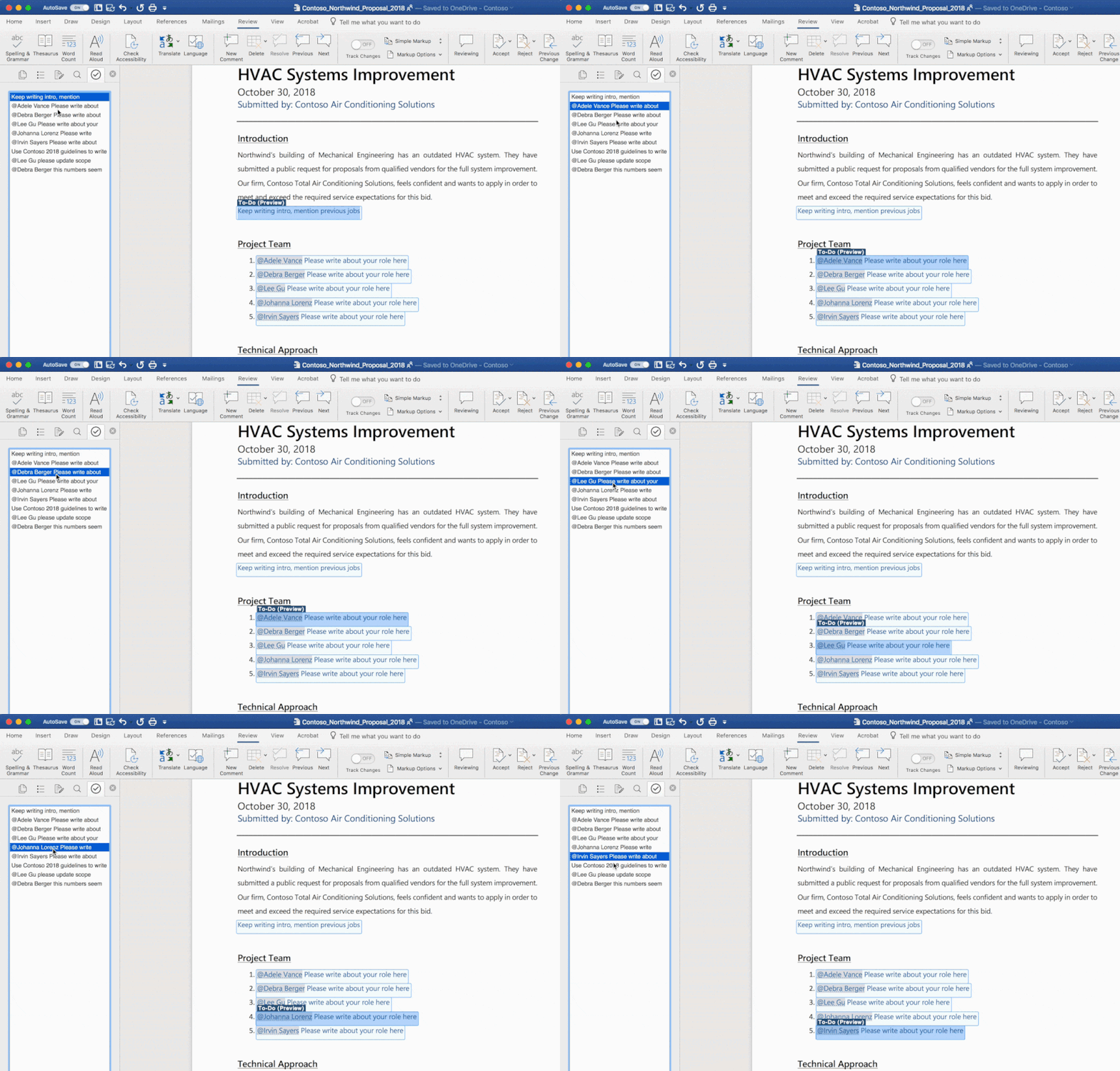
Once you’ve created your to-dos, Word can also help you complete them. If you need help from a friend or coworker, just @mention them within a placeholder. Word sends them a notification with a “deep link” to the relevant place in the document. Soon, they’ll be able to reply to the notification with their contributions, and those contributions will be inserted directly into the document—making it easy to complete the task with an email from any device.
Over time, Office will use AI to help fill in many of these placeholders. In the next few months, Word will use Microsoft Search to suggest content for a to-do like <<insert chart of quarterly sales figures>>. You will be able to pick from the results and insert content from another document with a single click.
These capabilities are available today for Word on the Mac for Office Insiders (Fast) as a preview. We’ll roll these features out to all Office 365 subscribers soon for Word for Windows, the Mac, and the web.
Get started as an Office for Mac Insider
Office Insider for Mac has two speeds: Insider Fast and Insider Slow. To get access to this and other new feature releases, you’ll need a subscription to Office 365. To select a speed, open Microsoft Auto Update and on the Help menu select Check for Updates.
As always, we would love to hear from you, please send us your thoughts at UserVoice or visit us on Twitter. You can also let us know how you like the new features by clicking the smiley face icon in the upper-right corner of Word.