We’re excited to announce the new Save to OneDrive feature, a simpler way to manage and save your email attachments. This is a feature you’ve been asking for and today we’ve begun rolling it out to all Outlook.com customers worldwide. If you don’t have it yet, please check back over the coming week.
Before cloud storage became popular, some people would email documents to themselves, because they knew they’d be able to log in to their email account and access those documents from anywhere. People still do this today, however, there is an obvious downside—your inbox can get messy quickly and you have to search through ever-increasing email content until you find what you’re looking for.
We’ve made it simpler and tidier to manage these email attachments. When you receive an email with an attachment or group of attachments—documents, pictures, music or videos—you can now save them to OneDrive in just one click.
When you click Save to OneDrive, your files are added to a new OneDrive folder called Email attachments, making them a breeze to find and share. You’ll be able to access these files from all your devices (for example, by using the OneDrive mobile app or Office for iPad)–instead of leaving them to clutter your inbox.
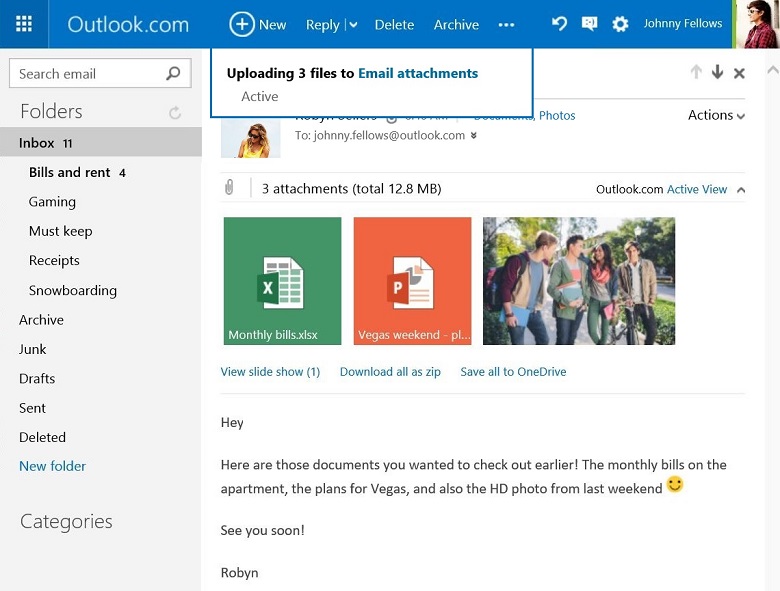
If you only want to save an individual attachment, you can do that too–just click the one you want to keep and then click Save to OneDrive from the drop-down menu.
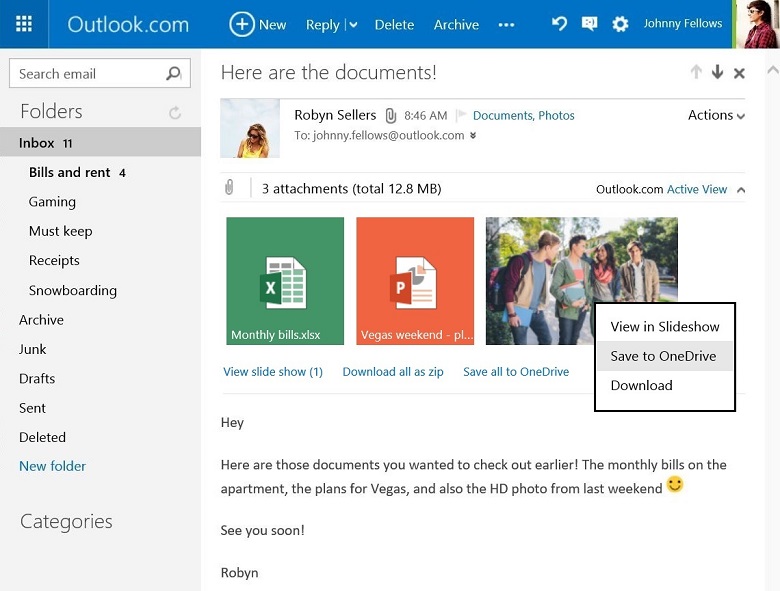
Of course, you can still save the attachments to your local drive by clicking Download—either as an individual file or all together in a .zip file.
We encourage you to try Save to OneDrive when you can and let us know what you think by leaving a comment below, or tweeting @Outlook.
—James Shields, product marketing manager for Outlook.com