 If you’re a manager building a budget in Excel, you’ll likely need to solicit input from your staff. Sometimes that collaboration takes several iterations, so it’s useful to add a DRAFT watermark to a worksheet. Or sometimes a sensitive document needs to be kept secret, making it important to add a CONFIDENTIAL watermark.
Excel doesn’t come with a built in way to add a watermark, but there’s a pretty painless way to do it: just place a pre-built .PNG graphic file in the header of your Excel worksheet, and it displays as a watermark. To get you started, we’ve created DRAFT and CONFIDENTIAL watermarks that you can access right from this post. Just follow the steps below the graphic.
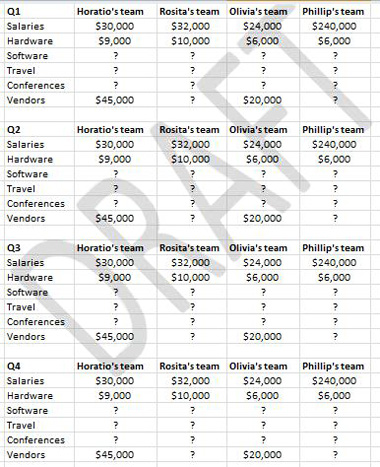
First you’ll need to open and save the watermarks we’ve created. Right-click on DRAFT or CONFIDENTIAL, and on the shortcut menu, click Save Target As. Specify the location where you want to save the picture and do so.
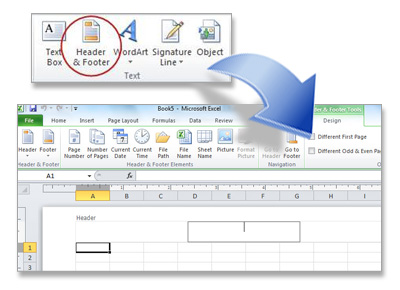
In your worksheet, click the Insert Tab and in the Text group, click Header & Footer. Excel switches to Page Layout view, and your cursor appears in the center header box at the top of the worksheet page (under Header).
Click the Design tab, and in the Header & Footer elements group, click Picture. Find your copy of the DRAFT or CONFIDENTIAL .PNG file on your computer and add it to the header. You’ll see that your worksheet header contains the word “Picture.” To view the actual watermark, just click in any cell in your worksheet.
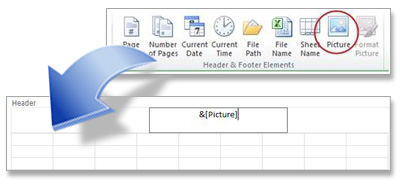
When you’re viewing it, you’ll be in Page Layout view. To return to the Normal view–the way you typically work in Excel–click the Normal button on the status bar at the bottom right of your screen.
(Note that headers are visible only in Page Layout view, the Print Preview window in Backstage view (File tab, Print), and the printed worksheet.)
If you want to adjust the position of the watermark or resize it, check out this article: