Skip to main content Explore Microsoft 365 apps Pricing for individuals Microsoft 365 Personal Microsoft 365 Family Microsoft 365 Premium Microsoft 365 Pro Student discount pricing Pricing for business Microsoft 365 Business Standard with Copilot Microsoft 365 Business Premium with Copilot For small business For schools For government Pricing for enterprise Microsoft 365 E3 Microsoft 365 E5 Microsoft 365 E7 For enterprise For frontline workers For nonprofits For government Meet Copilot Copilot Chat AI Agents Daily Prompt Guide Plans and pricing Microsoft Teams Word Excel PowerPoint Outlook OneDrive SharePoint Planner See all apps and services Microsoft Office Windows 365 Microsoft Viva Microsoft Edge Microsoft Agent 365 Plans and pricing Learn to use Copilot Copilot learning center Cost savings Accounts and billing FAQ Setup and install Templates Training What's new Microsoft Frontier Program AI at Work Roadmap Microsoft 365 Blog Small Business Resource Center Get started guide Self-help resources Billing support Community Contact Microsoft Support Self-help resources Admin self-help Support plans Find a partner Contact Sales Community Self-help resources Educator Center Request support Contact Microsoft Support Community Become a partner Partner resources See all support Try for free

Try Microsoft 365 Copilot

Available on desktop and mobile devices

You won’t find an undo command to return your document to a single-column format in Word 2010.

But you can undo multiple columns in a document by clicking the Page Layout tab, clicking Columns, and then clicking One to reformat your entire document as one column.
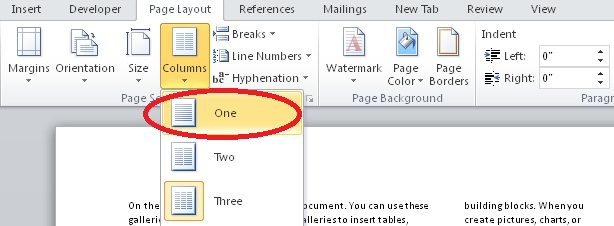
Undo columns

Do you have Word tips or tricks to share? Send them our way.

–Leslie H. Cole