When posting a Free Text Invoice with a Call Center user, the following error is generated:
“Payment is not authorized”.
3 possible Work-arounds:
- Process the Free Text Invoice as a non-call center user
(Retail >> Common >> Retail Channels >> Call Centers, Click on the Users >> Channel users button – Remove the call center user or log into AX as a non-call center user)
- Unmark “Enable order completion” in the General fast tab of the Call Center (Retail >> Common >> Retail Channels >> Call Centers).
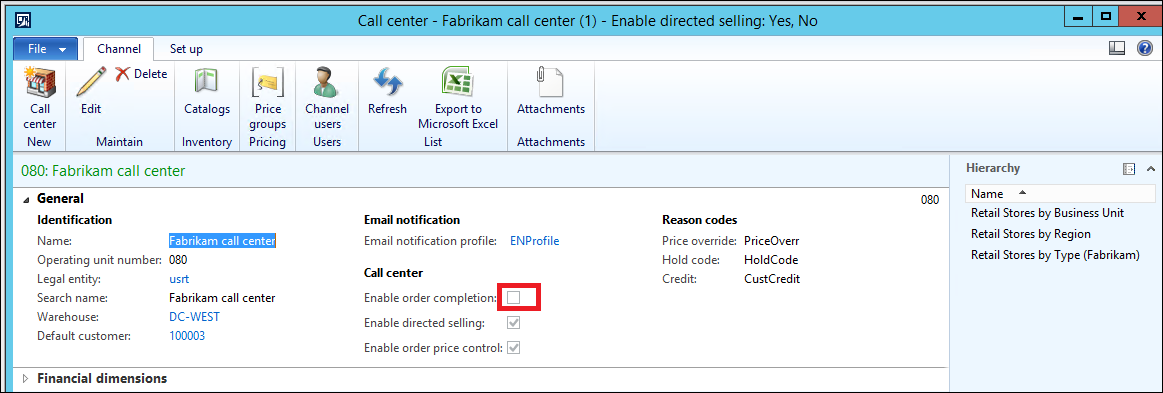
Be aware that normally when a customer calls into a call center to order an item, most are going to require a payment of some kind (prepayment or installment). Make sure that unmarking the “Enable order completion” is a valid work-around for your customer.
- Post the Free Text Invoice as a Call Center user by processing the Payment.
The Payments button is only available in the Free Text Invoice form, not in the AX list page. Find the Payments button in the Details action pane to process a payment for the invoice.
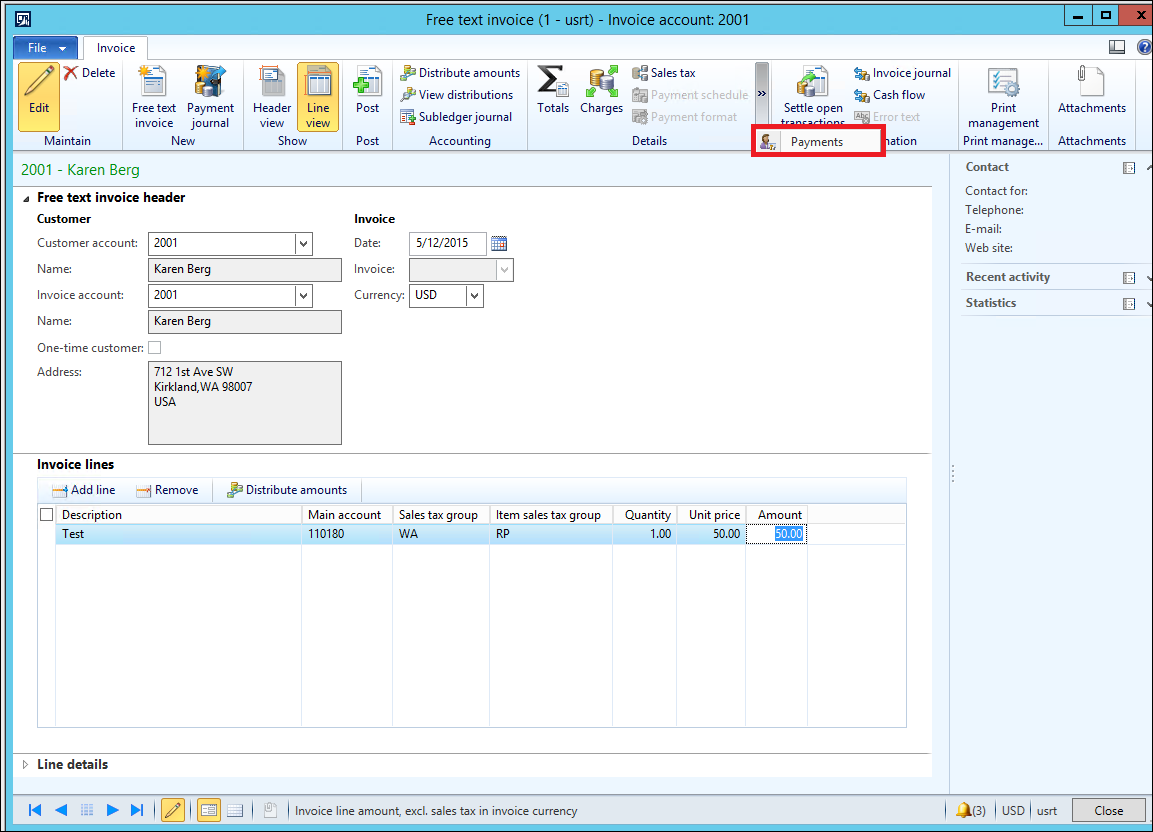
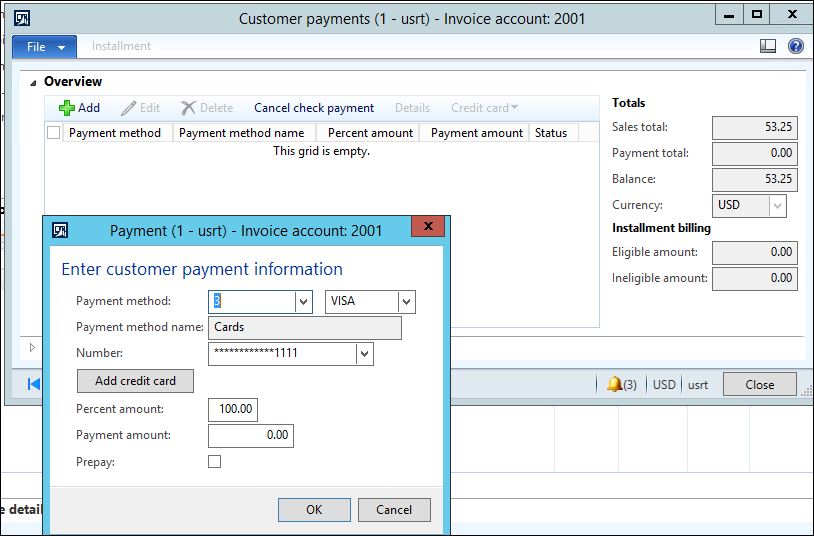
Click Add in the Customer payments form
Select the Payment method and payment amount
You can either mark the Prepay button or keep it unmarked.
If you select a Credit card payment method, click “Add credit card” to add the credit card number.
Note: In order to process a payment, “Enable order completion” must be marked.
When processing credit cards in a Free Text Invoice using Call Center, Dynamics Online Payment Services will need to be configured in Accounts receivables >> Setup >> Payment >> Payment Services
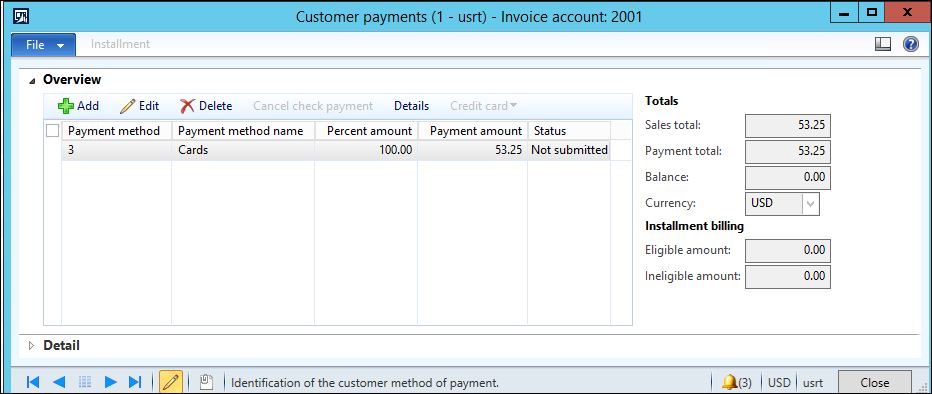
Close the Customer payments form and post the Free Text Invoice.
Both the Invoice and the Payment will display in Customer Transactions