Skip to main content What is Dynamics 365? Guided tours Customer stories Try our products Build your own agents CRM ERP Sales Service Sales Customer Insights Customer Service Contact Center Field Service Supply Chain Management Commerce Finance Project Operations Human Resources Business Central Pricing Business application topics Training & certifications Documentation Migrate to the cloud Private equity Migrate to Dynamics 365 Events Dynamics 365 Blog Product updates Onboarding and implementation Community Find a partner Software Development Companies Partner resources Microsoft Marketplace Product documentation Technical support On-premises product support Contact us Try for free Sign in
1 min read

Cannot edit the WCF configuration out of the Dynamics AX 2012 client configuration Tool.


If you cannot open the Service Configuration editor out of the Client configuration tool you can use the following workaround:

  1. Open the Client configuration tool
  2. Click the Configure Services button
  3. Receive the error message that it can’t open the Service Configuration editor.
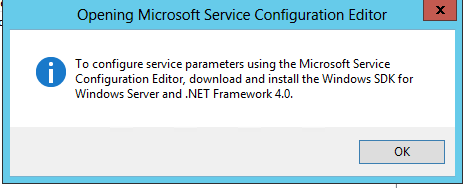
Opening Microsoft service configuration error.
  1. Agree with the Message
  2. The configuration tool will open a TXT file.
  3. Note the name of the File and keep the TXT file open
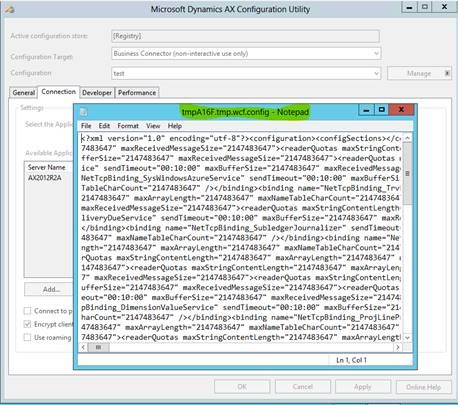
Microsoft Dynamics AX configuration utility TXT file.
  1. Open the Service Configuration editor manually from the Start Menu.
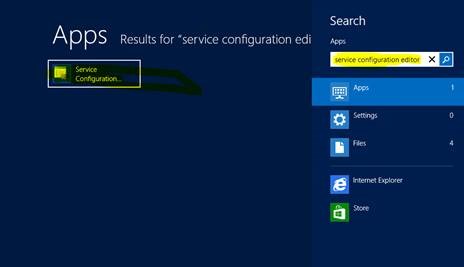
Service configuration editor.
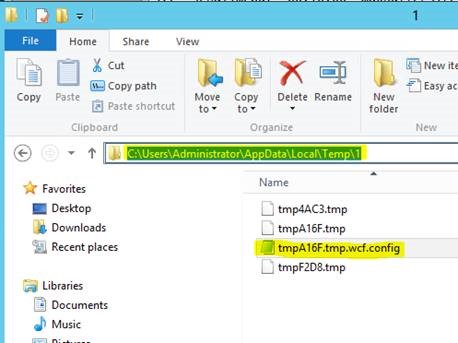
  1. Open the TXT file from the Configuration tool. This is located under: c:\users\”username”\appdata\local\temp\1
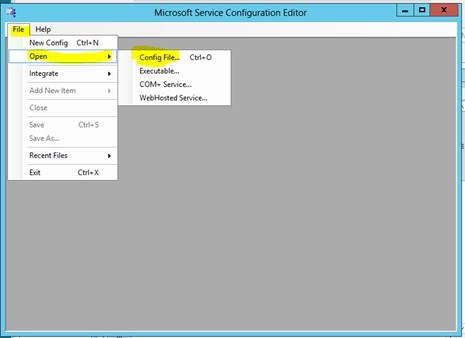
Opening the TXT file from the configuration tool.
  1. Edit the file as you want in the Service Configuration editor.
  2. Then save the file in the Service Configuration editor.
  3. Now close the TXT file in Notepad without saving.
  4. Press the Apply button in the Client configuration Tool.

Now all changes are done and stored.

The reason we have to do it like this is because only the “Apply” Button is pushing the WCF setting

into the Registry blob under “WCFconfig”.
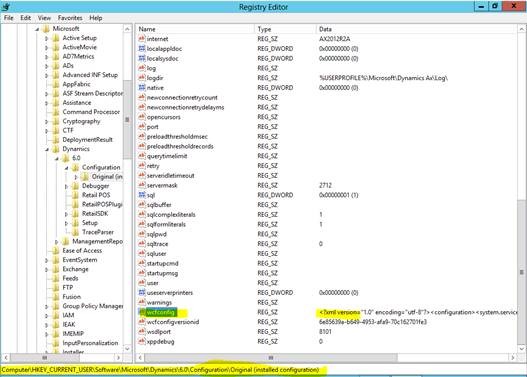
Registry editor.

Or into the created configuration axc file.


Writer: Uwe Zimmermann <uwezim@microsoft.com>

Get started with Dynamics 365

Drive more efficiency, reduce costs, and create a hyperconnected business that links people, data, and processes across your organization—enabling every team to quickly adapt and innovate.