
Meet the computer
you can talk toNeed something? Just ask Copilot

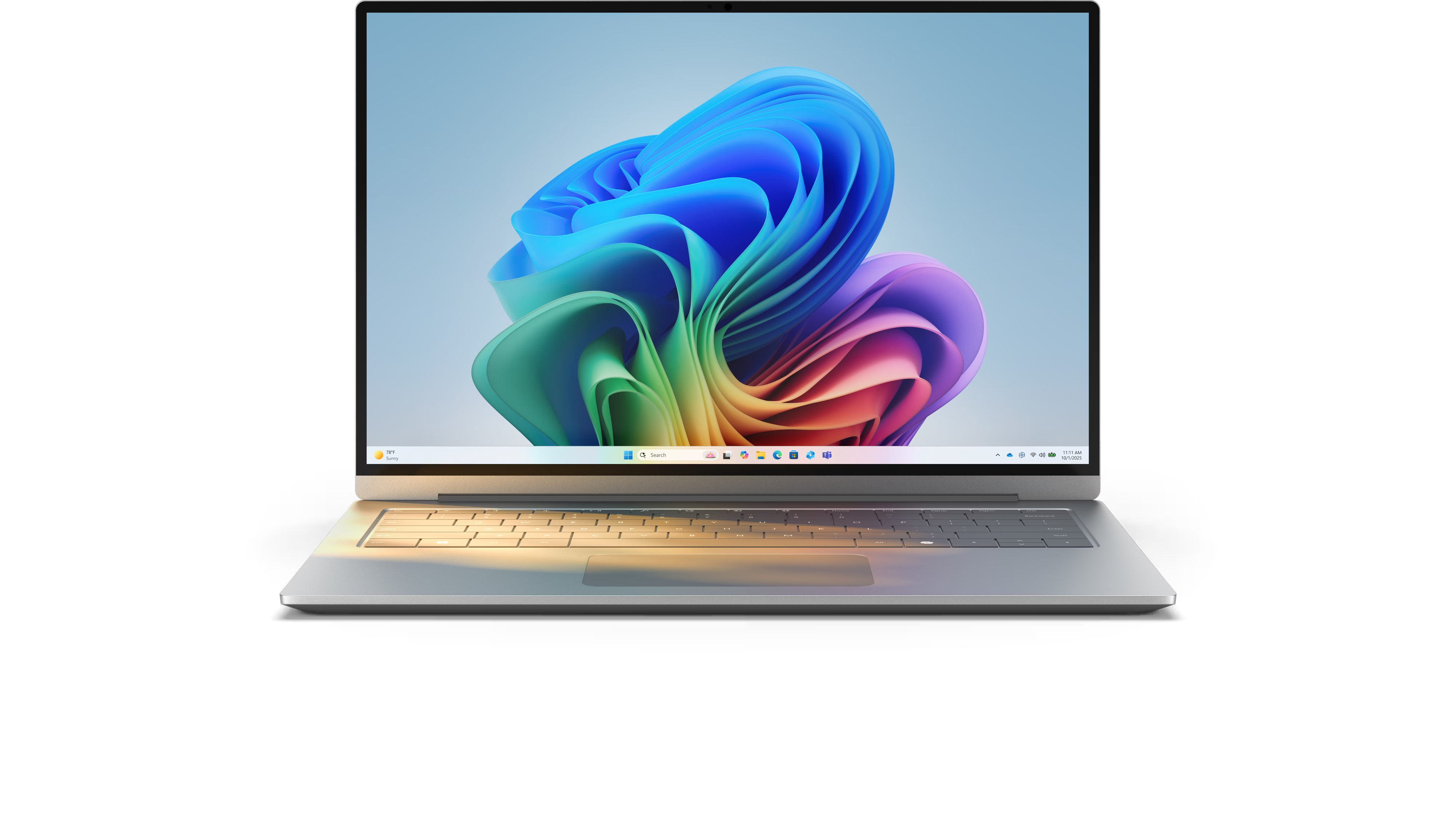
Copilot helps you work smarter and create faster, with built-in support to help you get things done—effortlessly.1 AI-powered features make Windows 11 the best version yet. Learn more about AI features on Windows.

Get real-time AI-powered guidance
Share your screen with Copilot Vision2 and use your voice to get real-time guidance, from help with studying to work.
Master new apps and games
Learn by doing. Share your screen with Copilot Vision2 and get step-by-step guidance, so you can master new apps, games, and level up faster.
Bring your ideas to life
From first spark to final polish, Copilot is there to brainstorm with you so you’re never stuck at square one.
The best Windows yet
No matter how you use your PC, Windows 11 has features, apps, tools, and programs to help you do what you do—on the best version of Windows, ever.
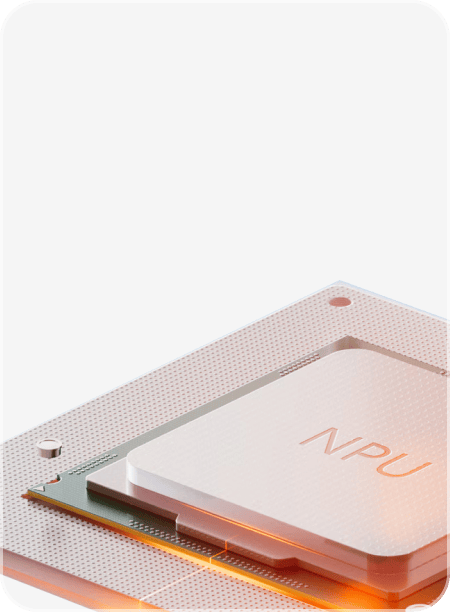
Super. Speed
Copilot+ PCs are up to 5 times faster than many older Windows PCs.*
*Compared to 5-year-old Windows PCs; based on Cinebench 24 Multi-Core benchmark. See aka.ms/cpclaims.

Stay in sync with Phone Link
Connect your phone and PC for seamless messaging, calls, and notifications—all on one device.3

Edit photos and movies
Preserve and polish your memories with Windows 11 Photos and AI-powered Clipchamp—made for moments worth keeping.4
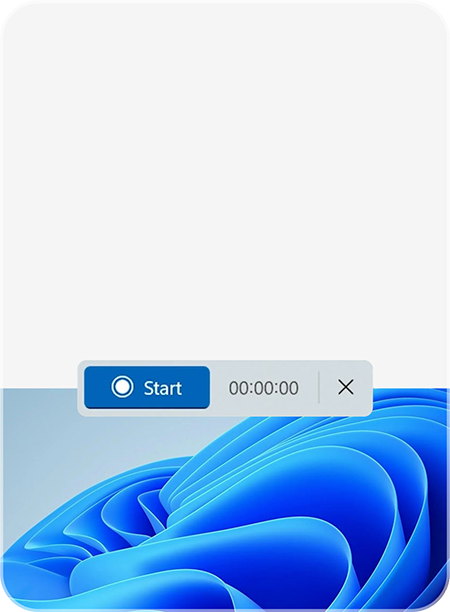
Save what’s on screen
Screen Recorder and Snipping Tool make it easy to grab what you see. Just click it, drag it, then you've got it.

An app for anything
Make your PC feel like yours with apps for productivity, creativity, and fun. All in the Microsoft Store.

Tap, talk, write
Use touch gestures, voice commands, or a digital pen.5 Windows 11 works how you work best.
Ready to save? Shop Windows 11 PC deals at these stores
Play the best PC games6
Windows supports significantly more PC games than any other OS.7 We have the power, speed, and performance to keep your head in the game.

Play the best PC games6
Windows supports significantly more PC games than any other OS.7 We have the power, speed, and performance to keep your head in the game.
Your “always-on” guard
Copilot+ PCs come equipped with AI-powered threat detection and built-in security from the chip up, so your personal data stays personal.
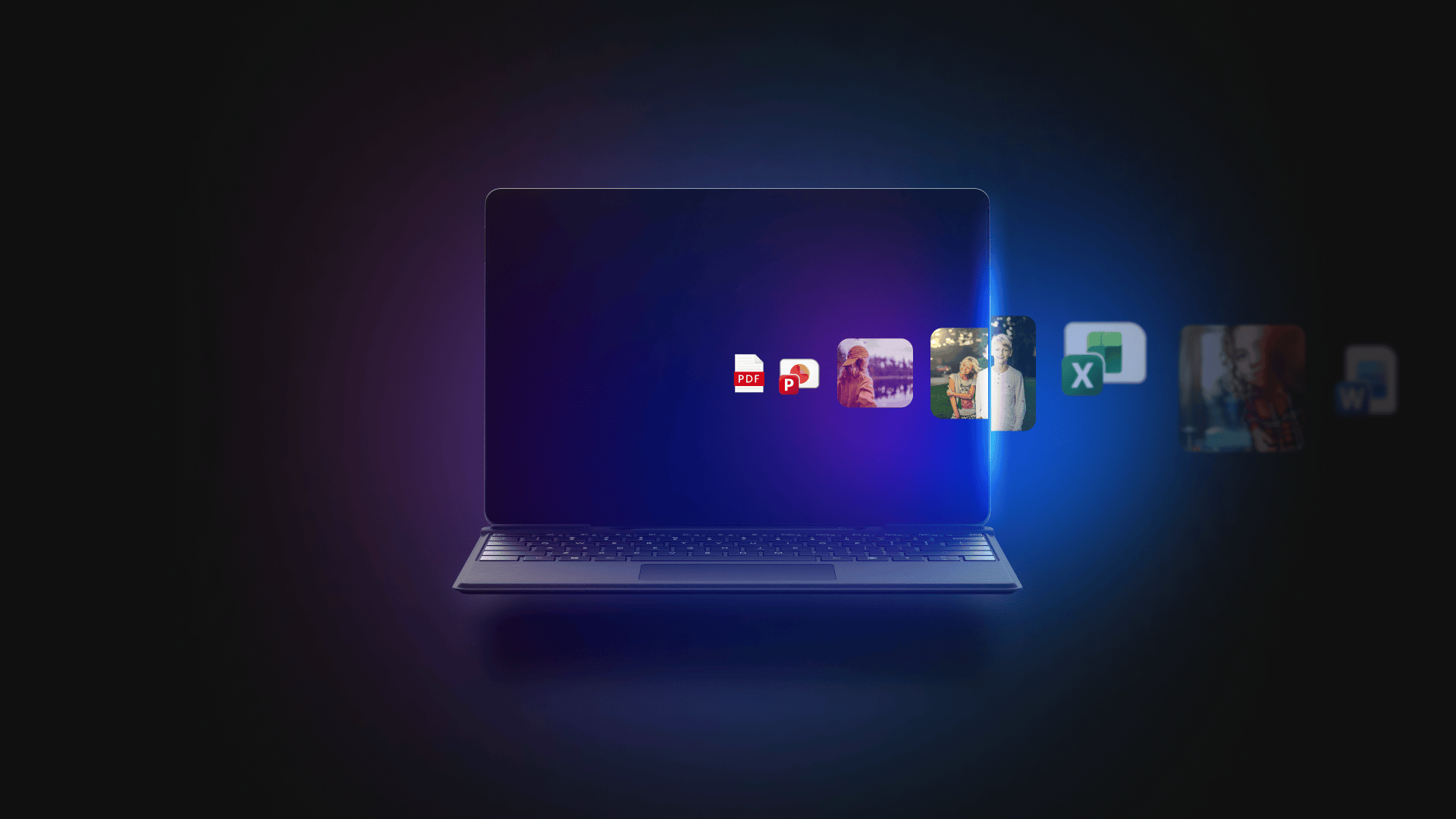
Move with ease
Transfer your files, apps, and memories to your new Windows PC.9

Shop Windows 11 PC deals at these stores
Frequently asked questions
Get to know Copilot on Windows
-
Copilot on Windows is a desktop app designed to inform, ideate, and inspire. Using advanced AI, Copilot understands your questions and requests, provides direct answers, and assists with writing. It's like having a smart, helpful friend at your fingertips. At your direction, it can search your files, see what’s on your screen with Copilot Vision, and help you across apps and documents.
Copilot Vision on Windows is available in over 170 markets worldwide through the Copilot on Windows app. Usage limits for Copilot Vision will vary over time. -
Microsoft Copilot Voice uses advanced speech recognition and natural language processing to understand your spoken words and engage in conversation with you. You can initiate a Copilot Voice conversation in the Copilot app by pressing the microphone icon in the composer. If it's your first time using Copilot Voice, you may need to grant microphone access to Copilot on your browser or device. If you change your mind later, you can turn off Copilot’s access to your microphone in your platform settings.
You can also start a voice conversation by using the wake word, “Hey, Copilot”. When enabled in your Copilot settings, this opt-in feature gives you a new way to easily start a conversation with Copilot Voice, anytime your PC is unlocked and the Copilot app is running.
Once you enable the microphone, Copilot will play an audio greeting, and you can have a voice conversation with Copilot. You can mute yourself by clicking on the microphone icon, which will disable the microphone and stop Copilot from listening. To end a voice conversation, click on the 'X' icon. Copilot Voice will disengage and stop listening. -
Copilot Vision sees your screen and responds in real time, analyzing content, guiding you, and answering questions to keep you flowing—whether you’re browsing, working, or creating. You can even ask Copilot to ‘show me how’, and Copilot will highlight on the screen what to do next.
Here’s how to use it:- Initiate a Copilot Vision session in the Copilot app by clicking the glasses icon in the composer.
- Select which Windows app or desktop you want to share with Copilot.
- A floating toolbar with the Copilot Voice and Vision controls will appear and Copilot will play an audio greeting. At this point, you can have a voice conversation with Copilot and ask questions about what you see on the shared app or desktop.
- You can mute yourself by clicking on the microphone icon, which will disable the microphone and stop Copilot from listening. Clicking on the microphone icon again will unmute, allowing you to resume the conversation.
- If you ask Copilot Vision for help on how to use a specific app, it may show a highlighting cursor on the screen to point something out. Vision will not take actions on your PC for you, but it can explain and show what you should do next.
- Once you are ready for the Copilot Vision session to end, click Stop in the floating toolbar.
Copilot Vision on Windows is available in over 170 markets worldwide through the Copilot on Windows app. Usage limits for Copilot Vision will vary over time.
Getting started
-
You can launch Copilot on Windows by clicking the Copilot icon on your taskbar. If you do not see Copilot on your taskbar, you can download the Copilot app on Windows from the Microsoft Store.
You can also launch Copilot on Windows by pressing the Copilot key or Windows key + C on your keyboard, or with your voice by saying “Hey, Copilot”, when this feature is enabled in Settings.
Learn more about Copilot on Windows, including Voice and Vision, at Copilot on Windows. -
Yes, the Copilot app on Windows can be used on Windows 10 and Windows 11. Some features, like Copilot Vision and Voice, may have better performance on newer devices.
-
You don’t have to sign in to start using Copilot, but signing in with a personal Microsoft account unlocks more features like Copilot Vision, chat history, voice interactions, and image creation.
-
Copilot works across desktops, laptops, tablets, and smartphones (iOS™ and Android™). As long as you're logged in with the same account, your experience stays consistent, and your chat history syncs across devices.
-
Yes, Copilot is free to use on Windows. But extras like extended usage limits, priority access, faster performance, and AI features in Office apps, require upgrading to Microsoft 365 Copilot. Learn more.
The best Windows yet
-
Before installing Windows 11, make sure the device where Windows 11 is being installed meets the minimum system requirements. If the device is currently running Windows 10, Microsoft recommends verifying the minimum system requirements using the PC Health Check app. It isn't recommended to install Windows 11 on a device that doesn't meet those requirements.
If your PC is eligible to upgrade to Windows 11, you can install it for free in one of these ways:- Upgrade via Windows Update
- Settings > Privacy and Security > Windows Update, then select Check for updates and install Windows 11.
- Use Windows 11 Installation Assistant to upgrade
- Windows 11 Installation Assistance app can be used before Windows Update offers the Windows 11 upgrade. The Windows 11 Installation Assistant can be found here.
- Use Windows 11 Installation media
- Installation media is normally used to install Windows 11 on a device that doesn't already have Windows installed on it. For details on where to obtain the Windows 11 installation media and how to create it, see the article Create installation media for Windows.
- Upgrade via Windows Update
-
The upgrade from Windows 10 Home or Windows 10 Pro to the equivalent edition of Windows 11 is free (for example, Windows 10 Pro to Windows 11 Pro). Check to see if this is an option for you by opening Settings > Privacy and Security > Windows Update. If your PC meets the minimum system requirements and is able to upgrade, you should see an option in Windows Update to upgrade from Windows 10 to Windows 11. Learn more.
For S mode users, the upgrade to Windows 11 from Windows 10 Home edition in S mode and Windows 10 Pro edition in S mode is free. If your PC meets the minimum system specifications, the Windows 10 Home edition in S mode can upgrade to the Windows 11 Home edition in S mode. If your Windows 10 PC is running the Pro edition in S mode, you will need to switch out of S mode to upgrade to Windows 11 Pro. Windows 11 Pro edition is not available in S mode. Learn more about S mode here. -
The power of AI is at the heart of the Windows 11 experience, helping you work smarter and create more with tools designed for everyday life. Apps like Clipchamp for video editing and Paint for image creation come ready on Windows 11 PCs, so you can start creating right away. For even more possibilities, download Microsoft Copilot from the Microsoft Store to get your own AI assistant. Discover fresh ideas, summarize lengthy pieces, enhance your writing, automate tasks to speed up your workflow, and more with Copilot on Windows.
-
Copilot+ PCs are a new class of Windows 11 AI PCs that are powered by a turbocharged neural processing unit (NPU)—a specialized computer chip for heavy AI tasks like real-time translations and creating images—that can perform more than 40 trillion operations per second (TOPS). Learn more about Copilot+ PCs.
-
Connect your phone and PC for messaging, calls, and notifications. Phone Link must be installed on the mobile device; minimum version 1.24041.97.0. Some features vary by platform and market (e.g., files/photos on iPhone™). Mobile devices require Link to Windows app (minimum version 1.24041.97.0). Phone Link for iOS requires Bluetooth and Android requires WiFi. Learn more about requirements and setup.
-
The Microsoft Photos app is a built-in application for Windows operating systems that allows users to view, organize, edit, and share their photos and videos. With its user-friendly interface and a wide range of features, it serves as a versatile tool for managing digital media on Windows devices. Learn more.
-
Microsoft Clipchamp is a video editor designed to make video creation easy for everyone, even for those with no prior editing experience. It enables you to combine your videos, images, and audio files; add text and effects; and then save the finished video to your computer. You can also add stock videos, stock music, sound effects, stickers, graphical elements, and backgrounds. All the AI video editing tools in Clipchamp video editor are free for all users. Learn more about AI video editing features in Clipchamp.
-
Capture screenshots or record your screen with built-in editing tools. Recent updates include AI-powered enhancements for cleaner captures.
-
Open the Microsoft Store app on Windows to browse apps for productivity, creativity, gaming, and AI-powered experiences. Applications meet Microsoft’s security and quality standards.
-
Windows 11 is designed to deliver a smooth, intuitive experience on touch-enabled devices. You can navigate your PC using simple gestures like tapping to select, swiping to switch between apps, and pinching to zoom in or out. Learn more.
The interface is optimized for touch with larger icons and generous spacing, making it easy to move through menus and open windows. Whether you’re using a tablet, a 2 in 1 device, a laptop, or a touchscreen monitor, Windows 11 provides a seamless touch experience that feels natural and enhances productivity. A touchscreen-capable PC is required. -
Pen is a feature in Windows 11 that allows you to use a digital pen to write, draw, and interact naturally on your device. With it, you can take notes, sketch, and mark up documents directly on your screen and use tools for easy access to pen-enabled apps and features.
-
Voice control capabilities offers built-in voice recognition and commands you can use to navigate and control your device. With Voice access, you can complete different tasks, such as launching applications, navigating menus, opening files, and voice typing. This feature is great if you're looking for more ways to be productive on your Windows 11 device or if you have mobility or accessibility needs.
-
With a simple swipe, pinch, or tap, you can easily navigate through apps, files, menus, and more on your Windows 11 device. Scroll, zoom, and rotate images or documents using various touch gestures. Windows 11 provides a smooth and intuitive touch experience that makes it simpler and more enjoyable to use your device.
-
Windows Backup is a built-in feature that helps you protect and transfer your digital life when moving to a new PC or recovering from unexpected issues. It securely saves your files, settings, and even apps to the cloud using your Microsoft account, so you can restore them later with ease. Learn more.
With Windows Backup, you can:- Back up your essentials: Choose to save documents, photos, and other files to OneDrive, along with personalization settings like Wi-Fi networks, language preferences, and app configurations.
- Restore quickly on a new device: When you sign in to a new Windows PC, your backed-up files and settings sync automatically. Apps you’ve installed will appear in your list for easy reinstallation—though older apps may need manual setup, and compatibility can vary on ARM-based devices.
- Stay secure: All backups are encrypted and stored in Microsoft’s cloud with enterprise-grade security and GDPR compliance.
- Know what’s included: A Microsoft account includes 5 GB of cloud storage with OneDrive. If you need more space for your files, you can upgrade to a qualifying Microsoft 365 subscription, which offers additional storage and premium features. See available options.
Some apps require manual reinstallation from the original app provider and some may not be compatible with Arm devices. See WOA for Arm-compatible apps and Windows Backup for details. -
There are many ways to get help in Windows 11. Try any of these methods to get the Windows 11 help you need:
- Use Search: Type a question or keywords into the search box on your taskbar to quickly find apps, files, settings, or helpful results from the web.
- Visit support.microsoft.com/windows: Go to support.microsoft.com/windows for answers to more in-depth issues, to browse troubleshooting topics, or to reach Microsoft support.
- Use the Get Help option: When you're in Settings, select Get help to learn more about the feature you're using and find answers to related questions.
- Visit Windows Learning Center: Learn how to use Windows 11 to stay organized, productive, protected, and more.
- Screens simulated. Features and app availability may vary by region.
- [1] Options for launching Copilot on Windows may vary by device.
- [2] Copilot Vision on Windows is available in over 170 markets worldwide through the Copilot on Windows app. Usage limits for Copilot Vision will vary over time. Learn more.
- [3] Mobile devices require Link to Windows app (minimum version 1.24041.97.0). Phone Link for iOS requires Bluetooth and Android requires WiFi; learn more here about requirements and setup. iPhone and iMessage are trademarks of Apple Inc and Android is a trademark of Google LLC.
- [4] Microsoft Clipchamp subscription sold separately (premium filters & effects, premium stock content, brand kit, advanced AI features - highlights, retake and filler word removal, premium output (4k)).
- [5] Hardware-dependent. Pen accessories may be sold separately.
- [6] 8 out of the last 10 Game of the Year winners run natively on Windows. Games sold separately and availability varies over time and by region.
- [7] Based on Steam’s catalog of PC games. Source: The Preferences Powering PC Gaming report by Ampere Analysis, commissioned by Microsoft, September 2025.
- [9] Backs up files, settings, and apps from PCs running Windows 10 or 11. Requires Microsoft account; data transfers exceeding 5 GB require Microsoft subscription or trial. Some apps require manual reinstallation from the original app provider and some may not be compatible with Arm devices. See WOA for Arm-compatible apps and Windows Backup for details.
- [10] Battery life varies significantly by device and with settings, usage and other factors. See aka.ms/cpclaims.
- [11] Built in on all Copilot+ PCs and hardware dependent on other Windows 11 PCs.