UPDATE: On Oct 17, 2013 Microsoft released Windows 8.1. With Windows 8.1 the Windows + S shortcut now launches Bing Smart Search. To take screen clipping with OneNote on Windows 8.1 use Windows + Shift + S shortcut.
Windows + S will continue to work for OneNote screen clipping in Windows 8 and previous versions of Windows.
———————————-
Today Microsoft released the Consumer Preview for Windows 8.1, also known as Windows Blue. If you try it out you’ll notice a lot of awesome changes. But try out the Windows + S shortcut for screen clipping in OneNote and you’ll find it doesn’t work as expected! Don’t panic, a fix is coming soon and in the meantime, you can use the workaround below.
What is Windows + S?
The most loved keyboard shortcut in OneNote desktop, you can press Windows + S to invoke the screen clipper. This lets you select areas of your screen to send to your notes and puts it on to your clipboard to paste (CTRL + V) anywhere.
What has changed in Windows 8.1?
New in Windows 8.1, Windows + S brings up a Search experience designed to help you find things more quickly from any application. The new OneNote shortcut key will be Windows + Shift + S, but this won’t be available until later in the year as an update. We know how useful the old Windows + S shortcut key is, so we’re providing a workaround in the meantime.
How to set a new screenshot shortcut in Windows 8.1
For now, you can manually set a shortcut key to Windows + A. You’ll have to change the shortcut key through your registry. (Note: Unintended changes in your registry can cause problems, so make sure you follow these instructions exactly.)
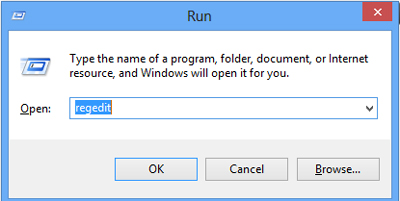
- Use Windows + R to pull up this dialog, and type regedit.
- Now in the folders on the left, navigate down this path:
HKEY_CURRENT_USERSoftwareMicrosoftOffice15.0OneNoteOptionsOther
Note: The path requires the specific version of Office. In the path above, 15.0 refers to Office 2013. If you’re using Office 2010, type 14.0 in place of 15.0 at the end of the path. Replace 15.0 with 12.0 if you’re using Office 2007. - In the folder named Other, right-click the white space underneath the files in that folder and select New, then select DWORD (32-bit) Value.
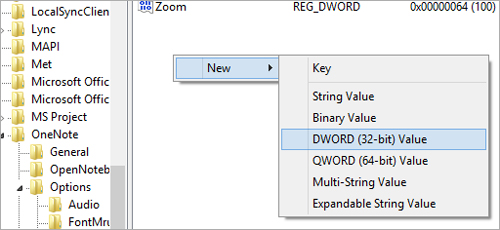
- In the text entry field that pops up, type ScreenClippingShortcutKey. You just created a new DWORD. (If you are in Office 12.0, this DWORD will already exist.)
- Right click this DWORD and select Modify, then in the Value field, type 41.
Your new shortcut key has been assigned to Windows + A. Now log off and log on again and you should be all set!
Remember, the Windows + Shift + S fix is coming later this year, but hopefully this will help you out until then!
————————-
Download OneNote: onenote.com
Follow OneNote: twitter.com/msonenote
Like OneNote: facebook.com/MicrosoftOneNote