Outlook promises to keep you connected, focused and on top of what matters. Wearables promise to always be with you and provide relevant, timely information at glance. Combined, they have the potential to help us get more done in life and work.
Last August, we released Outlook for Apple Watch, letting you interact with email and calendar information right from your wrist.
Today, we are introducing the Outlook watch face for Android Wear. With the Outlook watch face, you can quickly see an overview of your day’s schedule along with key details on where you need to be next. Staying on top of your day has never been easier.
Let’s take a deeper look at what you get with Outlook for Android Wear.
Always know what’s next with a glance at your watch
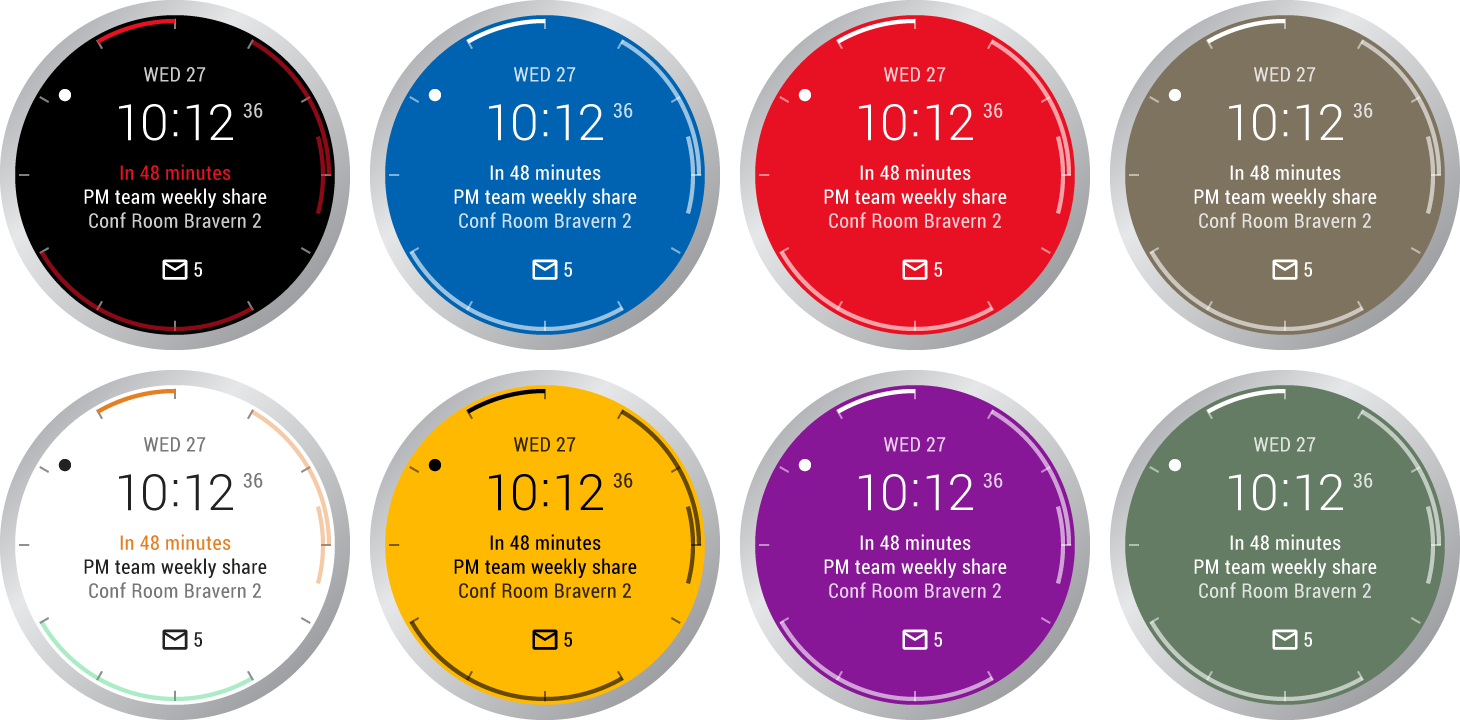
Starting with today’s update, you can easily stay on top of your day with a quick glance at the Outlook watch face. Outlook will show an overview of what’s coming up in the next 12 hours, overlaid on the dial of your watch. Colors on the dial match the colors of the calendars you’ve added to Outlook on your Android phone.
Details of your next event are front and center, showing you how much time is left until your next meeting and where you have to be. You also have information on how many new emails you have received since you last looked at your phone.
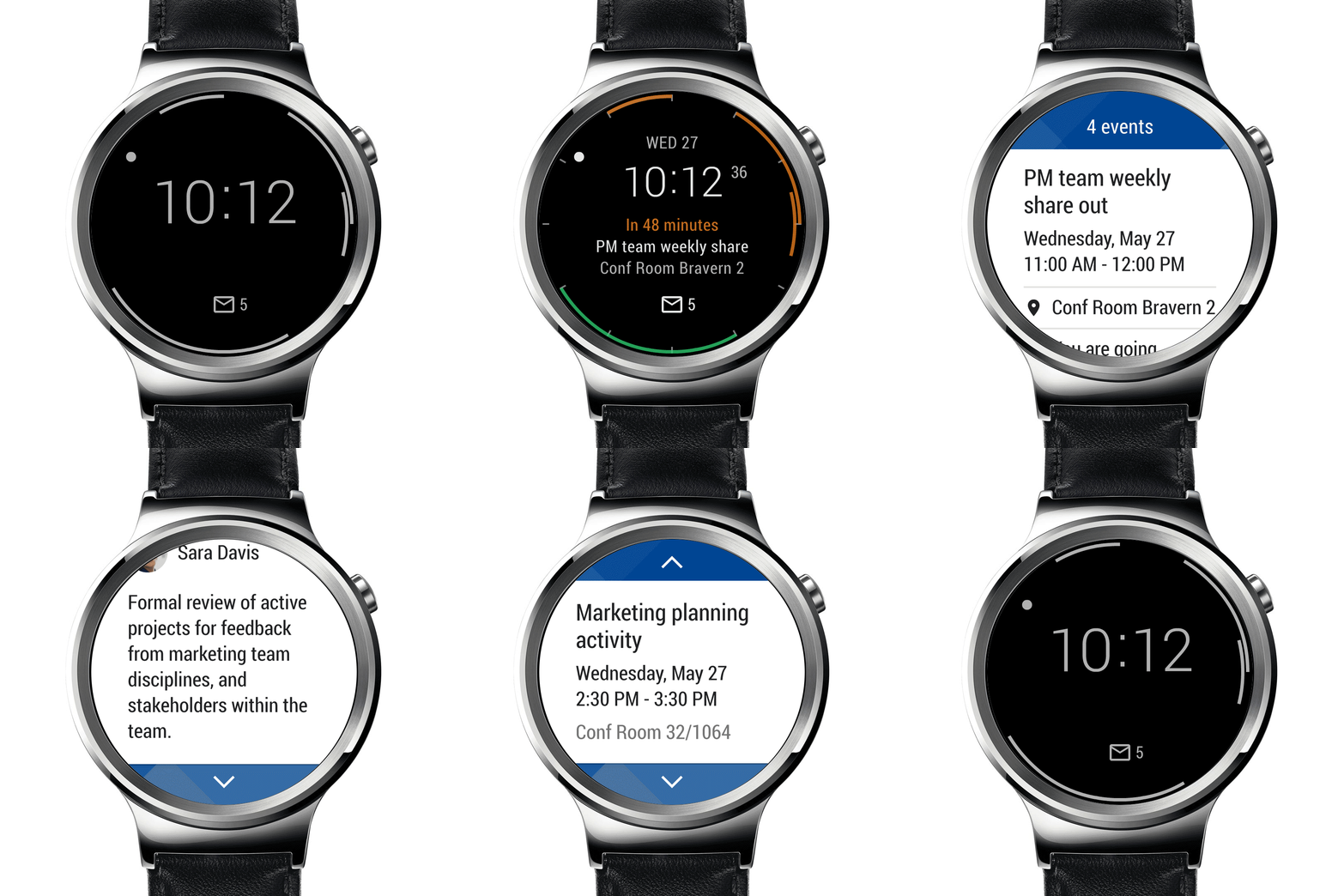
See your day’s schedule overlaid on the dial, with upcoming meeting details available at a glance.
Don’t have any events on your calendar in the next 12 hours? Outlook will show you who has recently sent you mail. Simply tap to dive into the details.
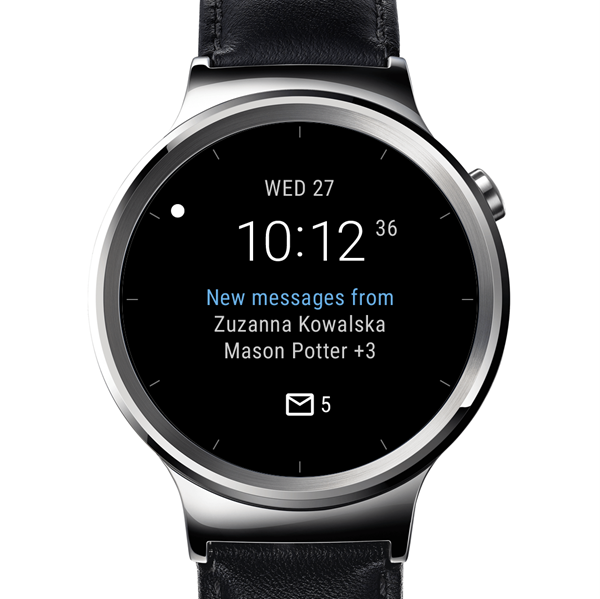
Outlook for Android Wear shows the number of unread emails and who they are from.
Wearables are equal parts utility and fashion. You can personalize your watch face background and accent color to fit your style for the day.
Do more with notifications on your watch
In addition to keeping you up to speed on what’s next, Outlook lets you interact with notifications and take action right from your wrist. Tap a notification to read and interact with an email. You can take the same actions that are available in Outlook for Android, including archive, schedule, flag and delete. If the email includes an event invitation, you’ll also have the ability to RSVP in a snap. If you need to reply, Outlook provides a preset list of responses and supports voice dictation. No need to even take your phone out of your pocket!
Outlook watch face also reminds you of upcoming events, so you’ll never miss another meeting. Tap the reminder to show the meeting time, location and meeting organizer so you’ll arrive prepared. If you are running late, send a note with a couple quick taps.
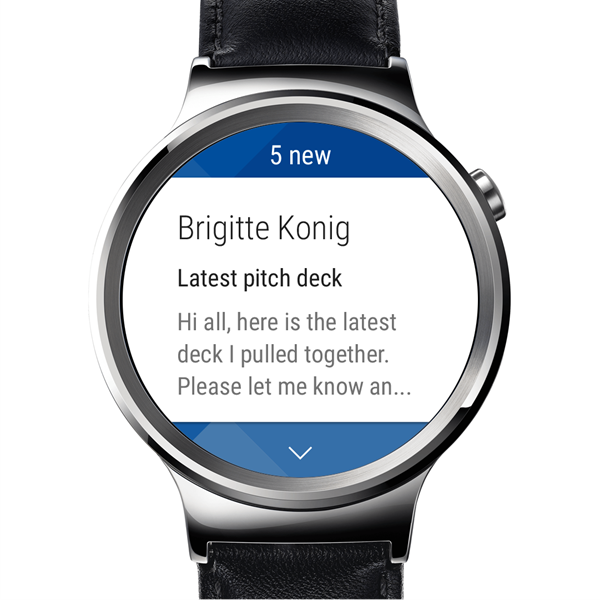
Swipe through to interact with your notifications.
What’s up next
Have an idea for how we can improve your experience on Android Wear and Apple Watch? Let us know by submitting a new feature idea or voting for an existing one directly in Outlook by going to Settings > Help & Feedback > Suggest a Feature. Stay tuned for more to come!
—The Outlook team