Have you ever had to find an email that was part of a long thread–an email with lots of replies about the same topic? For example, your boss might have asked for the results of last month’s important meeting, and you know Sherry sent an email outlining them, but then you remember that Todd followed hers with more information. If you group your emails into conversations, you can find the emails you want more quickly.
Show emails as conversations
Most people organize their emails in a running list arranged by the date they were received. Grouping your emails into conversations helps you locate all the emails related to that conversation.
Microsoft 365
Best-in-class productivity apps with intelligent cloud services that transform the way you work.

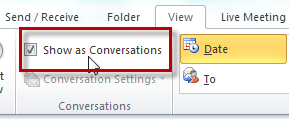
On the View tab, in the Conversations group, click Show as Conversations.
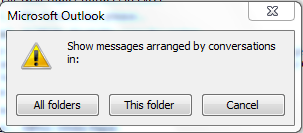
You can choose to apply the Conversations view to the folder you’re in or all folders..
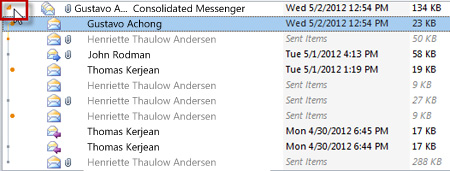
Your emails are now grouped by conversation. Click the arrow to expand the conversation and find the specific email you’re looking for.
Clean up conversations in Outlook
To make it even easier to find specific emails in Conversation view, you can delete replies that contain the same information.
On the Home tab, in the Delete group, click Clean Up, and click Clean up Conversation.
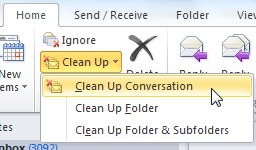
Click Clean Up to remove emails with redundant information.
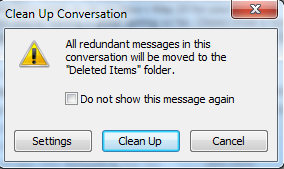
You’ll see that your ten emails were reduced to eight.
Don’t worry, you won’t lose any information – the only emails that are deleted are those with the same content. For example, let’s say someone replies to the latest email in the conversation, but then someone else comes along and ingores that email by replying at an earlier point in the conversation. When you choose to clean up your conversation, the email that was ignored isn’t deleted because its content is different than the others.
.jpg)
More info on Outlook conversation view:
What’s up with my Inbox in Outlook 2010?!
Webinar: Unclutter your Outlook inbox
CES: Outlook 2010’s Conversation View puts you back in action (video)
Inbox sanity: Prioritize your email with Outlook conversation tools
How Outlook 2010 cleans up after me
Use Conversation Clean Up to eliminate redundant messages
Turn on or off Conversations arrangement in the message list