Skip to main content Pricing for individuals For families For single users For premium users For students Learn more Pricing for business For small business For schools For government Pricing for enterprise For enterprise For frontline workers For nonprofits For government Meet Copilot Copilot Chat AI Agents Daily Prompt Guide Plans and pricing Microsoft Teams Word Excel PowerPoint Outlook OneDrive SharePoint Planner See all apps and services Microsoft Office Windows 365 Microsoft Viva Microsoft Edge Microsoft Agent 365 Plans and pricing Learn to use Copilot Copilot learning center Cost savings Accounts and billing FAQ Setup and install Templates Training What's new Microsoft Frontier Program Microsoft 365 Roadmap Microsoft 365 Blog Small Business Resource Center Self-help resources Billing support Community Contact Microsoft Support Self-help resources Admin self-help Support plans Find a partner Contact Sales Community Self-help resources Educator Center Request support Contact Microsoft Support Community Become a partner Partner resources See all support Try for free
  • 1 min read

Filtering emails in Outlook


Try Microsoft 365 Copilot

Available on desktop and mobile devices

Outlook offers several ways to filter emails. A filter lets you see only those messages that meet certain criteria. For example, you could pick a filter that lets you see only emails that have attachments or are unread.  Here’s how it works.

On the Home tab, in the Find group, click Filter Email.

Click any of the filters to see only those emails that fit that category. For example, select This Week  to show time ranges and click Last Week to see only emails you received last week. 


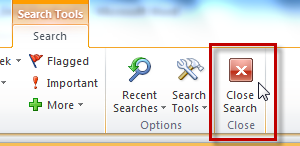
To remove the filter, click Close Search, and your email view returns to normal–you can see all the emails in your inbox.