Today we announced three major OneNote developments, including the OneNote Clipper, the easiest way to save anything on the web to OneNote with just one click. Think of it as your camera for the web, snapshotting any webpage you see directly into OneNote.
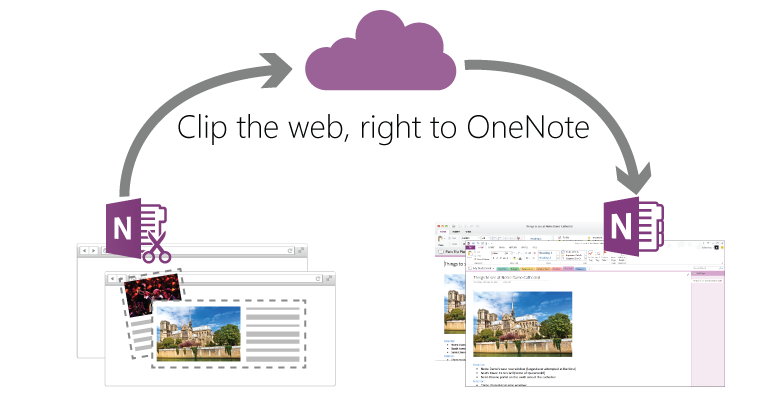
Researching for a big trip? Gathering recipes for an upcoming party? Collecting inspiration for a home makeover? The OneNote Clipper can help you do all of this quickly and easily. Watch the video below to see it in action.
Try out the OneNote Clipper now
To get started, use any major browser to visit www.onenote.com/clipper and follow the instructions to add the purple Clip to OneNote button to your Favorites bar. Congratulations, now you’re all set to start clipping the web to OneNote!
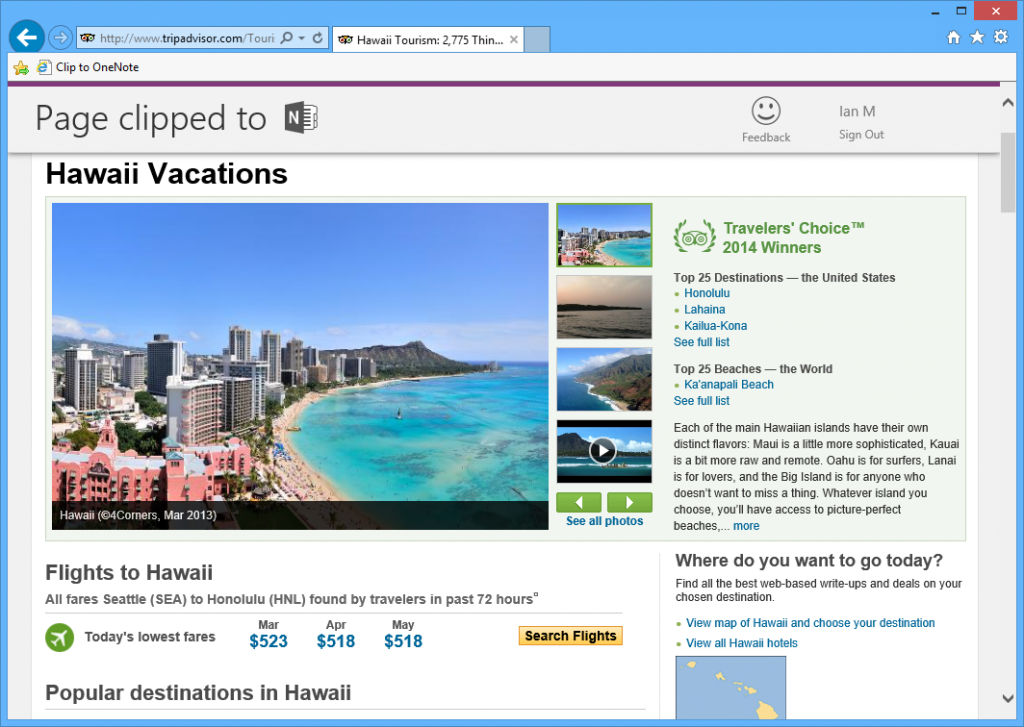
To clip, just browse to any webpage and click the Clip to OneNote button.
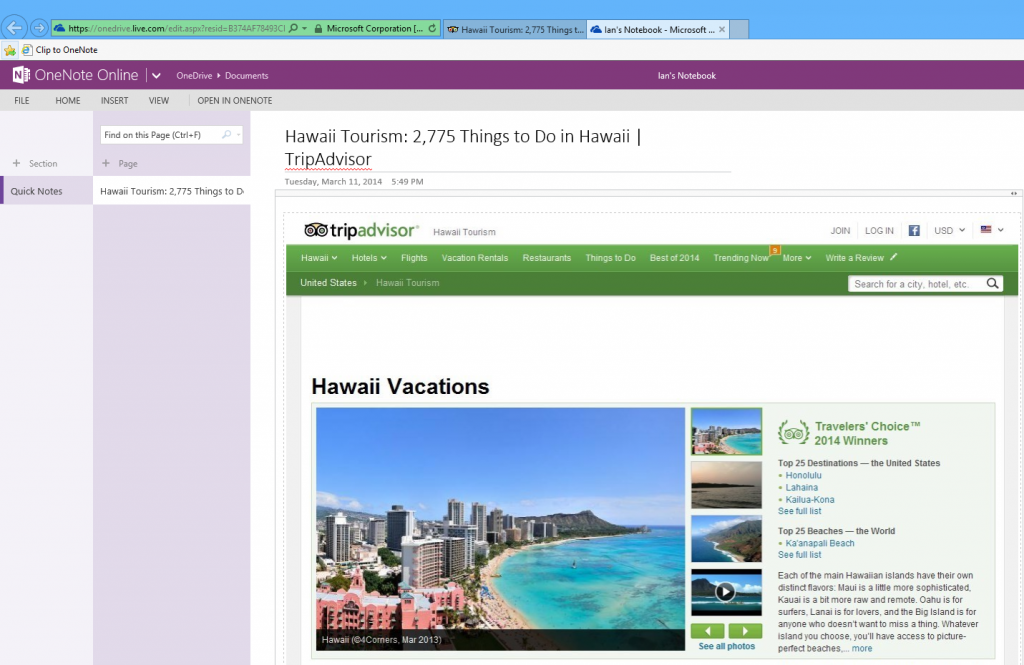
Once signed in, you’ll see the actual OneNote Clipper. The Clipper will let you know that it’s sending the page to OneNote, and when it’s finished, you can click the OneNote logo to immediately view your clip in OneNote Online.
All of your clips are saved to the Quick Notes section of your default notebook on OneDrive — automatically accessible and fully searchable on all your devices.
We hope you enjoy the OneNote Clipper. Please let us know in the comments if you have any feedback, we would love to hear from you. Happy clipping!
Get OneNote  | Follow OneNote