We recently announced the ability for co-editors to chat with one another directly within a OneDrive document when working in Office Online. Today, we’re pleased to extend this capability to our Office 365 Business and Education customers for documents stored in OneDrive for Business or SharePoint Online. Built on the same technology as Skype for Business, the new chat feature is available in all the Office Online applications—Word, PowerPoint, Excel and OneNote.
How to initiate a chat
When you share a document from OneDrive or SharePoint Online with your co-workers or classmates, they can view, make edits and even co-author with you in real-time. When multiple people are in the document at the same time, their names appear in the list of co-editors at the top right of the browser window. Next to the list of co-editors, you’ll see a blue Chat button (shown below).
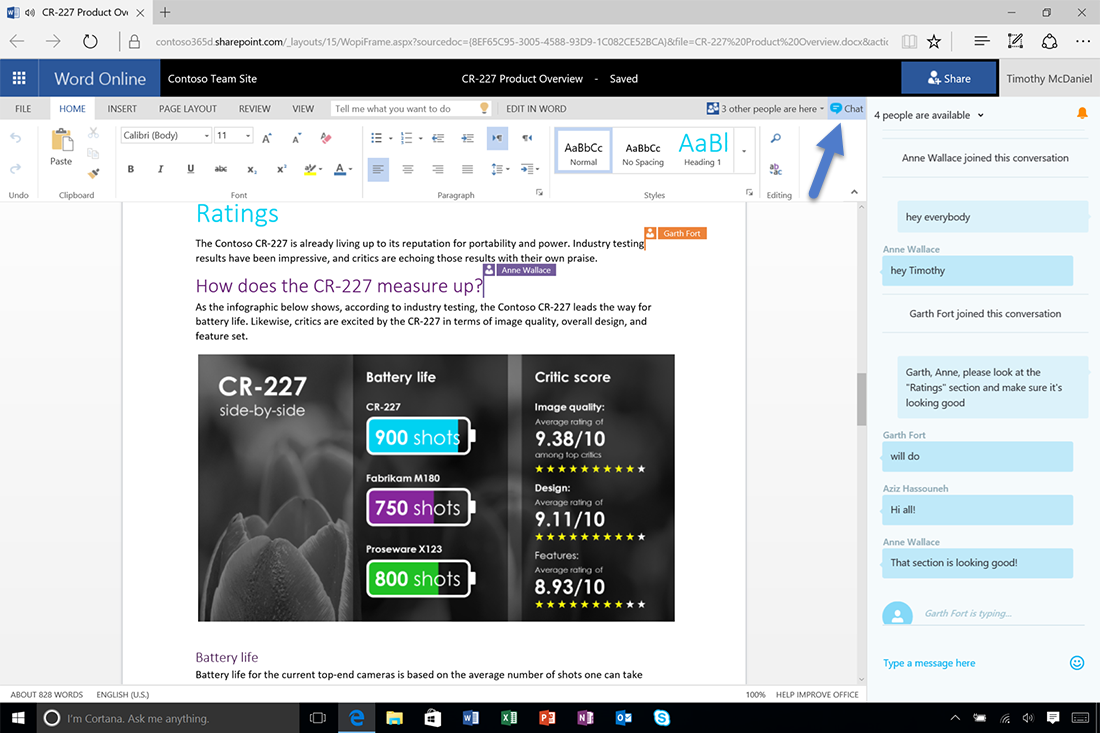
Chat in real-time while working with others in Office Online.
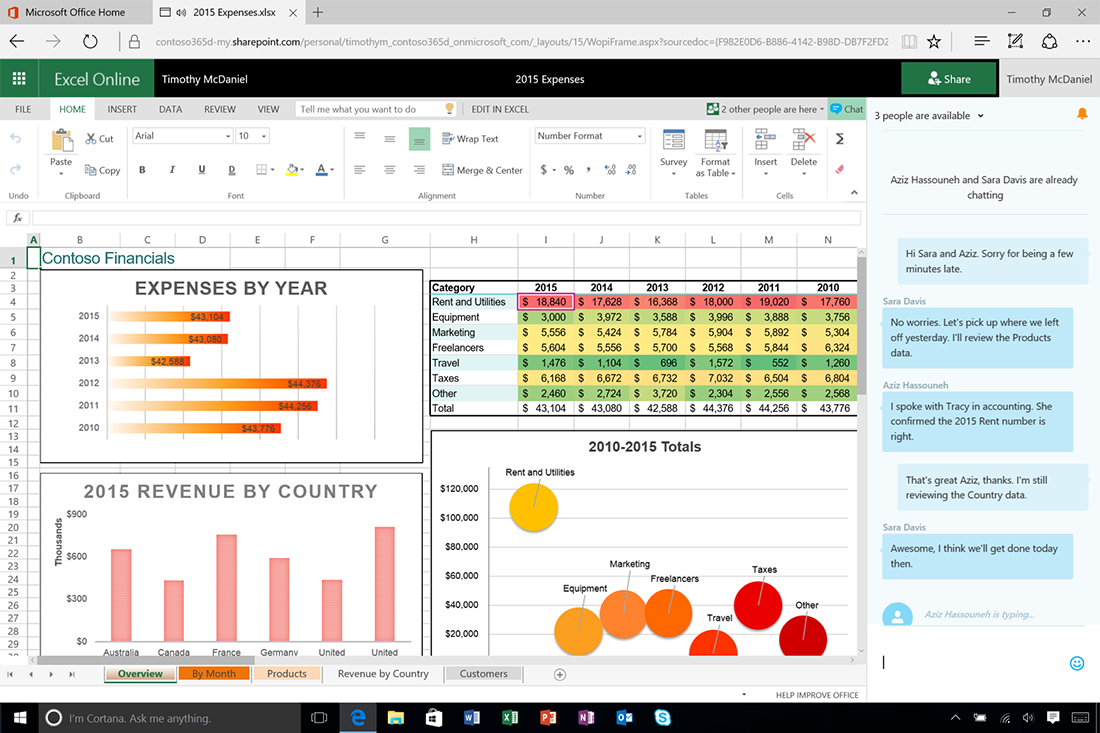
Real-time chat is integrated with Word, Excel, PowerPoint and OneNote Online.
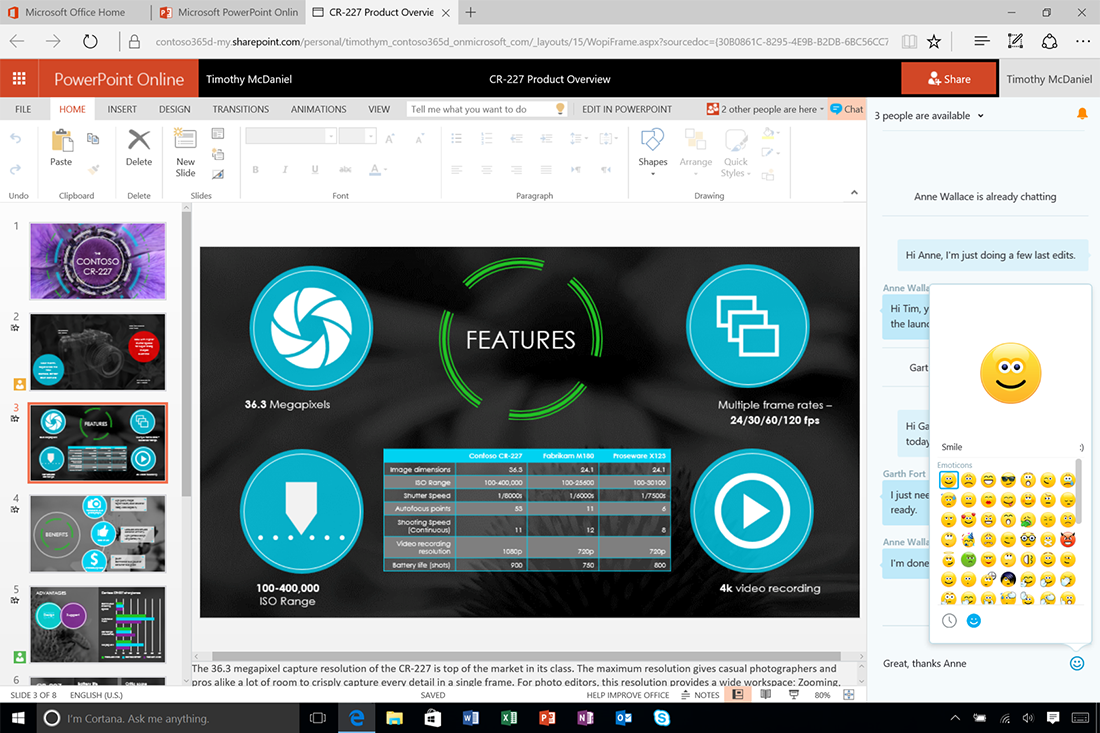
Use emoticons to liven up your conversations.
When to chat and when to add document comments
Use Chat when you want to communicate with others immediately, for example, to ask a quick question or divide sections among the co-editors. Chat history is not saved when you close the document but can be copied and pasted if desired. Use Comments (on the Review tab on the ribbon) when you want to attach a comment to a specific selection within the document, such as when you need to ask if a word or phrase should be changed. Comments are saved with the document and can be replied to, marked as done or deleted.
—The Office Online team