When we launched the Word and PowerPoint conversion feature last September, we promised to use customer feedback to improve Office Lens. Today is the day we prove it.
Since September, we’ve received a lot of exciting and positive feedback from our customers about our conversion scenarios. We also learned about how customers are finding new and creative ways to use Office Lens and the text they capture in their pictures.
Today we’re very happy to announce a new scenario. Now the Office Lens app on Windows Phone converts images to PDF files.
Microsoft 365
Best-in-class productivity apps with intelligent cloud services that transform the way you work.

Converting pictures to PDF files
Converting pictures to PDF files is very similar to converting images to Word and PowerPoint. This is a useful feature for teachers and students looking to go paperless because now they can scan all their paper documents to OneDrive so they are accessible, searchable on all their devices.
Use your Windows Phone to take a picture of your hardcopy document and tap Save. Then, select the PDF option. A PDF file is automatically saved to your OneDrive, so you can access it on any device, just like with Word and PowerPoint documents created with Office Lens.
PDF conversion by Office Lens includes OCR (optical character recognition), so you can extract text information from pictures. You can search the content in a file with the text and you can also highlight or copy part of the page (depending on the capability your PDF reader app).
Convert to PDF, Word and PowerPoint at the same time
You can convert pictures to PDF, Word and PowerPoint at the same time. For example, you can use the PDF output for quick consumption and the Word or PowerPoint file for richer editing to author your own document. Of course, all your pictures automatically save to OneNote as well.
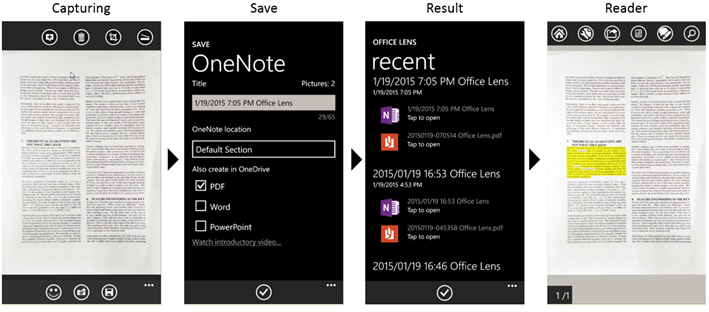
Capture documents with your phone’s camera, then view and annotate it as a PDF.
Introducing the auto-classifier
We’d like to introduce another feature we’ve added from customer feedback.
We’re always looking for ways to help Office Lens users be more efficient. With today’s update, we’re adding a new feature to help you capture images beautifully and effortlessly.
It is called auto-classifier. This intelligent feature is built using machine learning technology from Microsoft Research Advanced Technology Lab Cairo.
Across documents, whiteboards, business cards and photos—Office Lens cleans up images using the best algorithm for the mode you choose. Sometimes, however, it’s hard to remember to switch modes, especially when pressed for time.
With the auto-classifier, just point and shoot and Office Lens will give you the best result. The Office Lens auto-classifier analyzes what you’ve captured and automatically switches to the best mode. Now you don’t need to worry about which modes you should use.
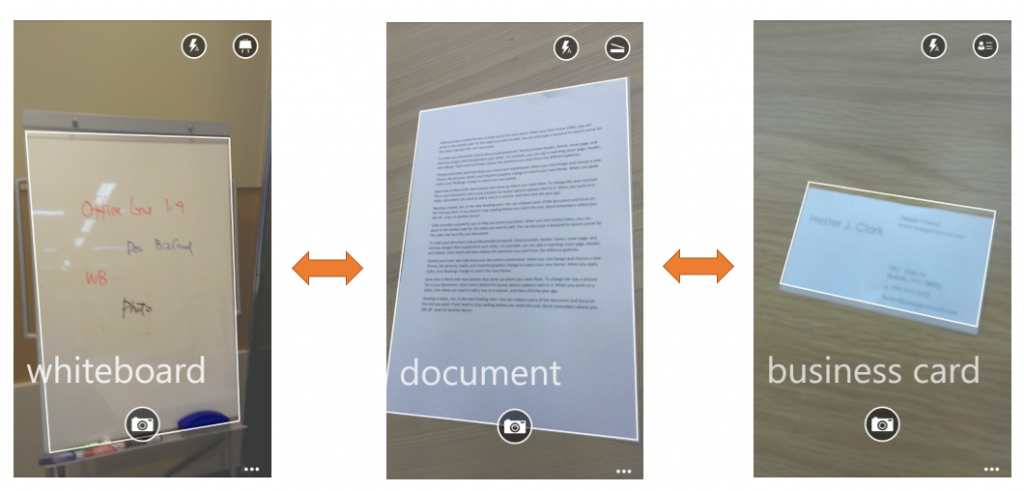
Mode switches automatically.
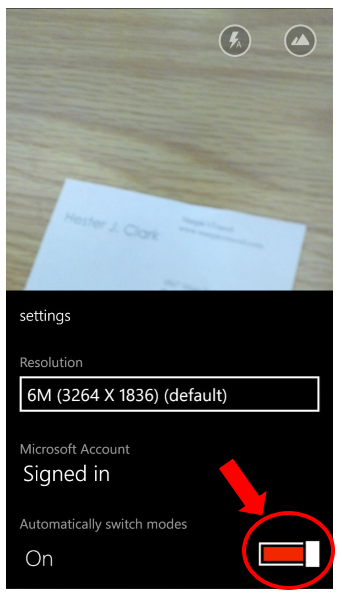
To use the auto-classifier, tap More (…) > settings and set Automatically switch modes to On.
Help us make it better!
Try the Office Lens update with PDF conversion abilities. You can download it for free on your Windows Phone.
Let us know in the comments how you use the app and what you think of it. We love hearing all your great feedback and we will continue to use it to improve the app in the next release. Now you know your feedback is heard and incorporated into Office Lens!
Get OneNote  | Follow OneNote