Recently Livescribe released a new version of their Livescribe+ app to send notes easily to OneNote. Now you can use pen and paper to take notes, and access that information on any device with OneNote.
The Livescribe 3 is a smartpen that connects to an iPhone or iPad to transfer handwritten notes to your mobile device. You can go into a lecture or meeting with your smartpen and a Livescribe notebook, store every note, drawing or idea, and capture everything that you might need in the future.
Writing with pen on paper is a very quick and natural way to capture information, something people have been doing for centuries. For OneNote fans, this new collaboration with Livescribe makes that information more valuable and more useful by integrating it into OneNote notebooks.
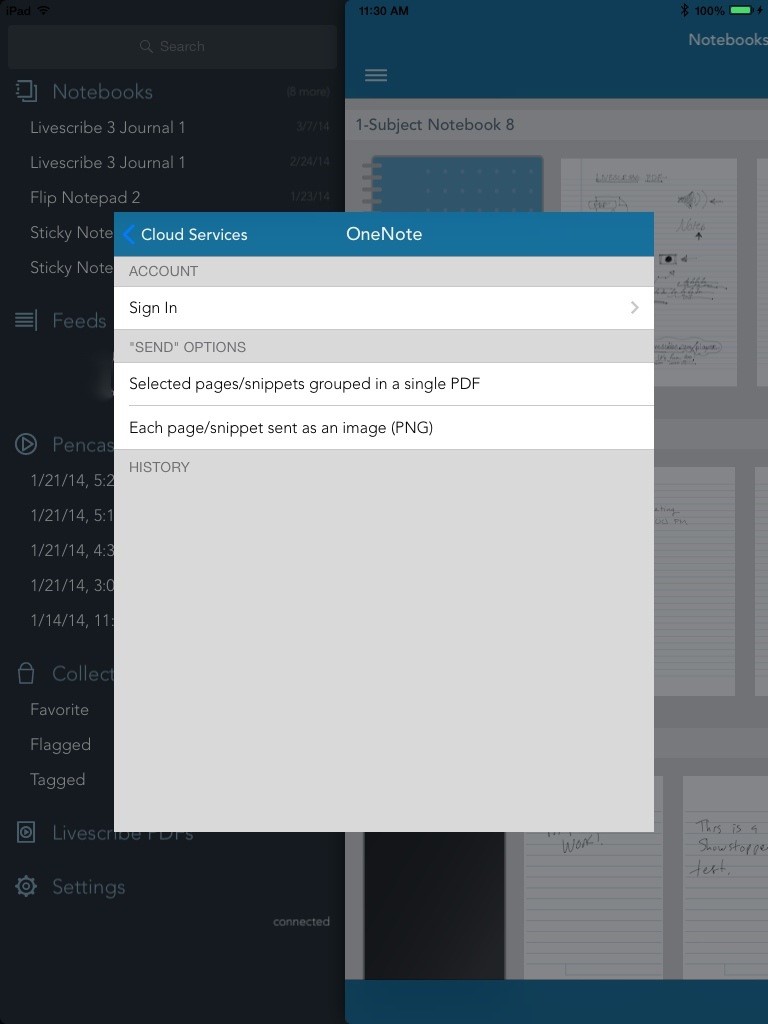
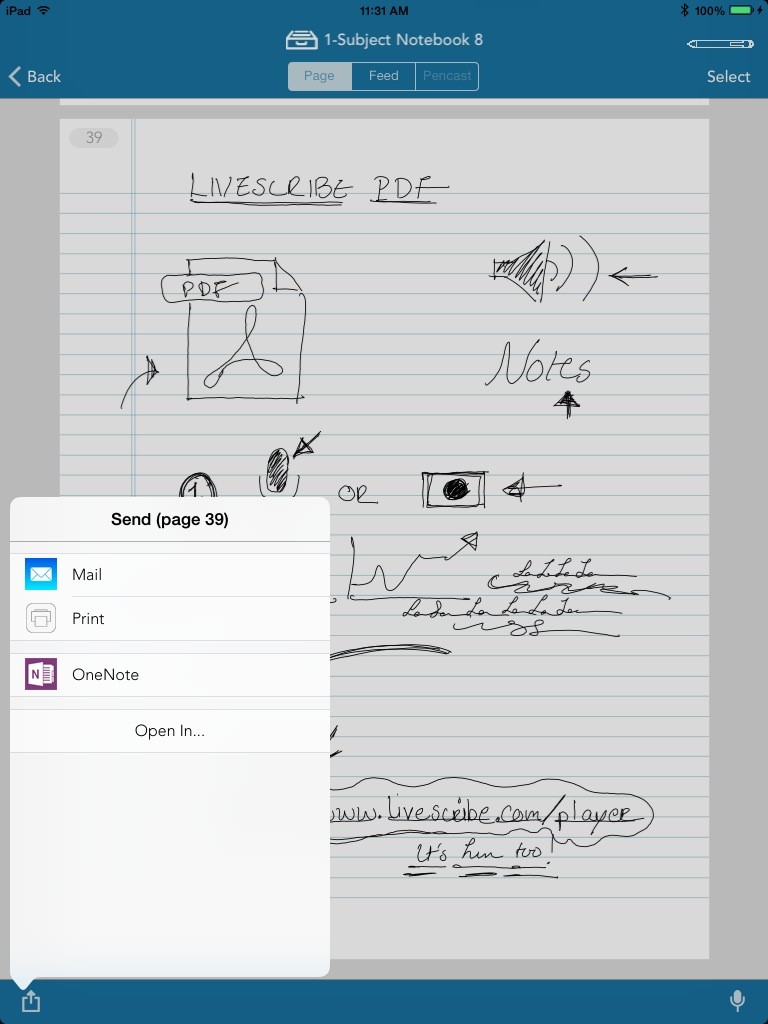
If you have a Livescribe 3 smartpen, you can get started by tapping on the Share icon inside Livescribe+. You’ll see a Send dialog with the OneNote icon – tap on that to log into OneNote with your Microsoft account. The default behavior under Send Options is to upload each page you select in Livescribe+ as an individual PNG file which will get imported directly into your OneNote notebook. You can also change it so all the pages you select will be uploaded as a PDF attachment.
Hope you enjoy this new way to write your notes down, and store and organize them in OneNote. For more How To info and to purchase a Livescribe smartpen, please visit www.livescribe.com/blog/noteworthy
Get OneNote  | Follow OneNote