Sometimes, it’s the little things that really make the day easier. We understand this really well. The Outlook team gets lots of suggestions for a convenience here or a shortcut there, to make the edges of your day go more smoothly.
One thing we’ve noticed is that some people like their folders in a non-alphabetical order. This allows you to have important or frequent ones near the top of your list, or unimportant ones near the bottom. To achieve that in Outlook 2010’s alphabetical world, we’ve seen folks like you play the special character game. You pick your favorite random character on the keyboard and put those characters in front to bring those folder to the top, like “___folder” or “***folder.” Or the “ZZZfolder” game to get things near the bottom. But why can’t you just drag a folder where you want it?
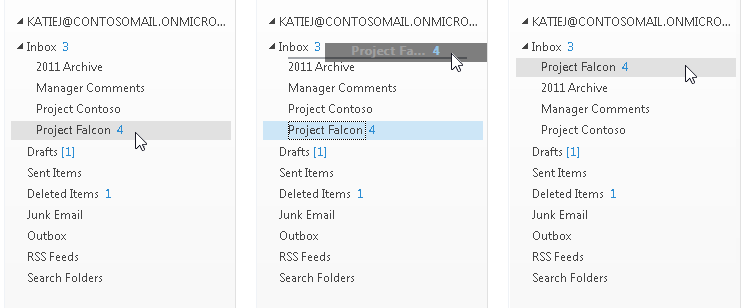
In Outlook 2013 you can arrange folders any way you like them; just drag your folders wherever you want. Go ahead, unlock the chains of alphabetical sorting…
Resorting Later
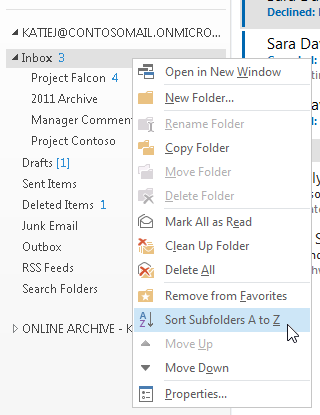
If you want to get back to alphabetical order, just right-click any folder and choose Sort Subfolders A to Z. That section of folders will be resorted. Other sections will maintain their custom or alphabetical sort to respect your organizational thoughts from last week or last year.
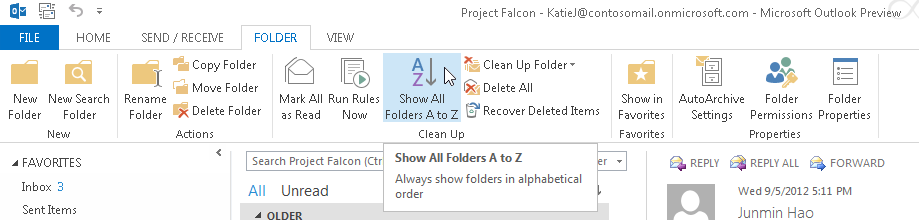
And finally, if you try it out for a while and don’t like it, there’s a button to go back to Outlook 2010 behavior where all folders are always sorted A-Z. Just switch to the Folder tab and turn on the Show All Folders A to Z feature. It will force your folders to be displayed alphabetically, regardless of what order they were in before.
We hope you enjoy putting your folders where you want them.
— Dan Costenaro, Outlook Program Manager