Skip to main content What is Dynamics 365? Guided tours Customer stories Try our products CRM ERP Sales Service Sales Customer Insights Customer Service Contact Center Field Service Supply Chain Management Commerce Finance Project Operations Human Resources Business Central Pricing Business application topics Training & certifications Migrate to the cloud Documentation Events Dynamics 365 Blog Product updates Onboarding and implementation Community Find a partner Software Development Companies Partner resources Microsoft Marketplace Product documentation Technical support On-premises product support Contact us Try for free Sign in
  • 1 min read

AX for Retail 2012: New steps when applying a POS hotfix


POS hotfixes for AX for Retail 2010 R1 and R2 could include scripts to update the POS database.  To upgrade the POS database, please complete the following:

 1. Before installing the hotfix:

      a. Make a backup of your existing store database.

     b. In SQL Management Studio, view the current database version (DBversion) by running the follow SQL statement against the POS database: 

            select * from POSISINFO

  2. After installing the hotfix:

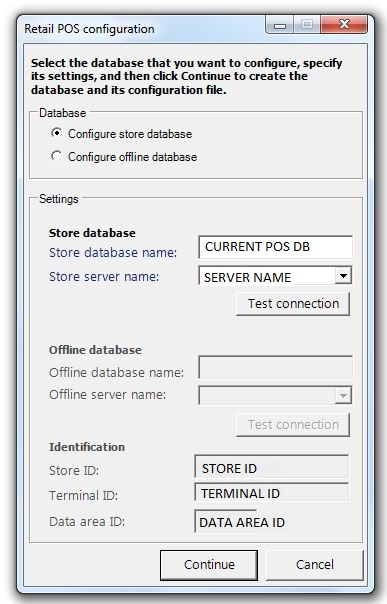
    a. Start Retail Database Utility (Start > All Programs > Microsoft Dynamics AX 2012 > Retail Database Utility > Retail Database Utility). In the configuration dialog box, enter information
into the Store database and Identification fields, and then click Continue.  This will execute the script, if available, to upgrade your database.


       b. In SQL Management Studio, view the current database version (DBversion) by running the follow SQL statement against the POS database and verify that the database version has changed:

               select * from POSISINFO    


Get started with Dynamics 365

Drive more efficiency, reduce costs, and create a hyperconnected business that links people, data, and processes across your organization—enabling every team to quickly adapt and innovate.