Scenario:
A user wishes to update the Item group for a released product.
They right-click on the Item group field and selects the Record Info menu item.
In the Record information form he clicks the Fill Utility button.
On the Query form, (EcoResProductPerCompanyListPage) they click the OK botton.
Now they get the following error:
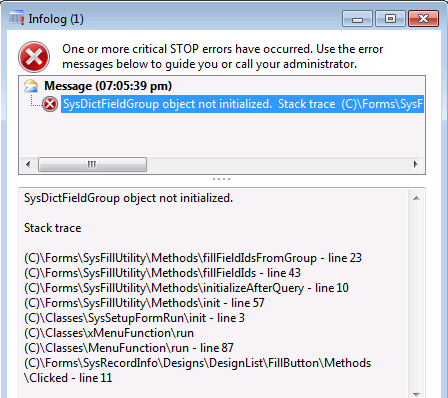
What happened?
This error is caused by the fact that the AutoLookup Field Group of the table (the table that the field belongs to that he wants to change) does not exist. The Field group is shown in the AOT as it is semi-created when the table is created, but it does not actually exist as field group until a field has (or had) been added to it.
How did we resolve this?
1. We found the tableid by doing some x++ debugging. Put a breakpoint for example on method at the top of the stack in line 23. When the code stops, after closing the stack trace window, in this method you can find there a variable called tableid. Note the value.
2 Several methods can be used to convert the tableid to a table name.
3 In the AOT, we located this table
4 Opened the node Field groups and then open AutoLookup and found it to be empty.
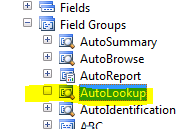
5 We can add any field, We added RecId, to this Field Group and this resolved the issue.
Once the field group has been created you can delete the added field