The recent OneNote for Android update is all about getting more things done in less time. Check out the newest features to help you capture anything to OneNote and access your notes faster.
Add anything from anywhere
In today’s busy world, we use phones to discover a lot of information to capture and reference later, such as an article on a favorite sports star, a recipe for an amazing dessert, a poster of an interesting-looking bartending class, or an important file shared by a colleague. OneNote is great for storing all your information, and now with the Add to OneNote feature, you can add what’s most important to you from any application on your Android device.
Just look for a Share button in your favorite browser, news aggregator or recipe application. Then select Add to OneNote, and OneNote will store the item for you and also make it available to you on all your devices.
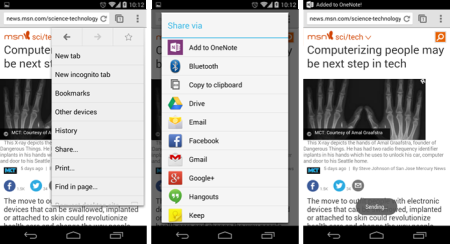
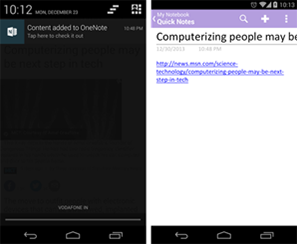
Or, if you want to capture exactly what you see on the screen, you can send a screenshot to OneNote. Just take a screenshot, tap the Share option, and then select Add to OneNote.
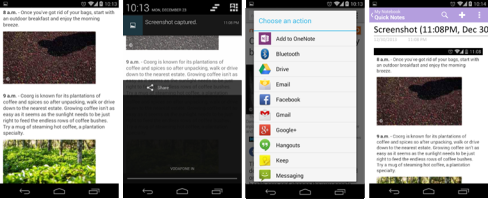
Add to OneNote works for a variety of content types–articles, webpages, images, videos, and files.
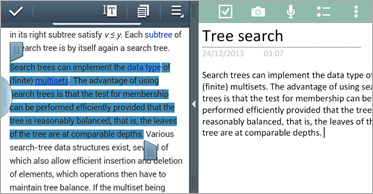
If you use a device that supports multi-window mode, such as Samsung Galaxy S3, now you can launch OneNote in the multi-window mode and quickly capture all the relevant information for your research project to OneNote.
Notes at your fingertips
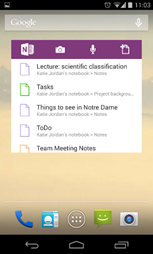
Don’t you hate it when you make others in line behind you wait while you look for the printout of your flight itinerary? Do you find yourself looking for your grocery list when you’re already at the store? We have a solution for you: Add the OneNote Recent Widget on your Home screen and have quick access to your most recently accessed notes.
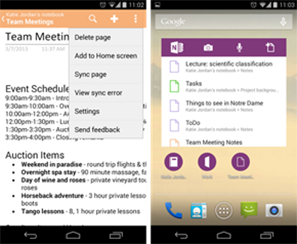
Or, add the page, section or notebook of your choice to the Home screen and have all of them just a tap away.
And more…of course
We’ve fixed several issues to provide an improved experience overall, but please let us know if something still bugs you.
We’d love to hear what you think of this update. Let us know in the comments, in-app feedback or through a review in Google Play.
Download OneNote: onenote.com
Follow OneNote: twitter.com/msonenote
Like OneNote: facebook.com/OneNote
Follow OneNote on Google+: https://plus.google.com/102199506601015331367/posts