Today we welcome back Seth Fox, Word team Program Manager, to explain how you can easily start new documents that come with built-in personality.
Last month I introduced the Start screen in the Word 2013 and discussed how templates and built-in content can be used to quickly create great looking documents. Today I’m excited to introduce new starting documents that are featured on the Start screen.
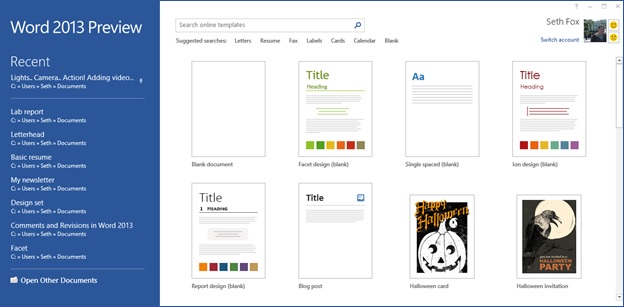
We know that over half of all Word sessions start from a blank document. These documents can end up looking very different, but in previous versions of Word they all started with the same settings.
In the Word 2013, we have made it easier for you to create great looking documents, allowing you to focus on content instead of formatting. For example, if you know you’re writing a paper for class and your professor has instructed that the paper must be singled spaced, you can now get started with a single click of the “Single spaced (blank)” template. There are also specialized templates that let you create documents with very different personalities without any formatting tweaks on your part. For example, if you need a clean, modern document that has numbered headings, simply click on the “Report design (blank)” template.
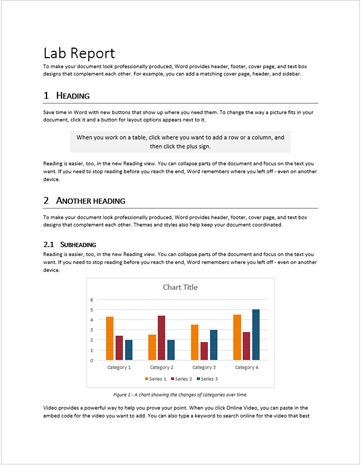
As you apply heading styles to text, they will automatically be formatted with a number. Formatting the rest of your document is as easy as selecting your desired style in the Style gallery from the Home tab. Or if you want a clean looking document that’s different from the same-old default look, all it takes is a click on “Ion design (blank)” and you’re on your way.
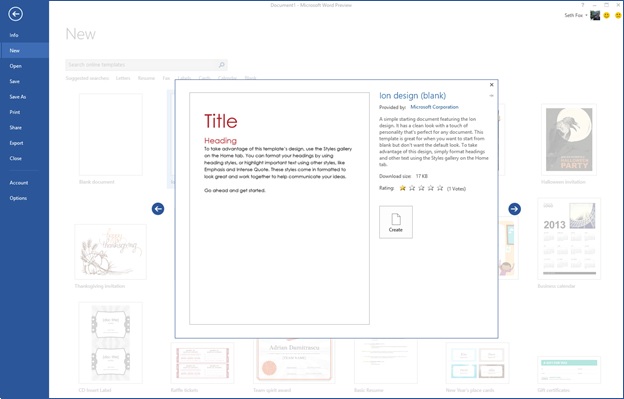
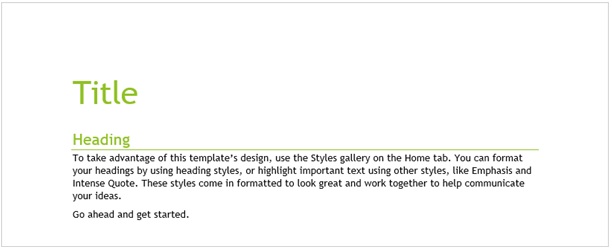
Design templates open with text already formatted with frequently used styles. Simply replace the text with your own words to get started.
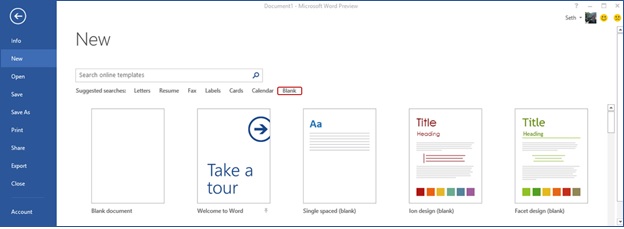
You can search for additional blank templates by clicking on the suggested search or searching for the term “blank”. If you find one you love, you can pin it to the Start screen to make sure it’s always at your fingertips.
Thanks for reading! I hope you find it easier than ever to get started in Word 2013, whether it’s creating a new document, opening a recent one, or using a template.