Outlook offers several ways to filter emails. A filter lets you see only those messages that meet certain criteria. For example, you could pick a filter that lets you see only emails that have attachments or are unread. Here’s how it works.
On the Home tab, in the Find group, click Filter Email.

Click any of the filters to see only those emails that fit that category. For example, select This Week to show time ranges and click Last Week to see only emails you received last week.

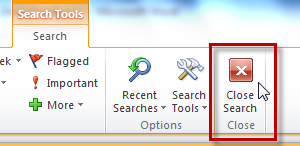
To remove the filter, click Close Search, and your email view returns to normal–you can see all the emails in your inbox.