


How you can use Azure Translator to batch translate your documents

In this article we will go through the requirement, challenges, and solution to automatically batch translate documents (HTML/TXT/Word) from any source language to any output language, while maintaining the structure and formatting of the source documents.
Requirements
Recently, we had a requirement to translate documents in 15 different languages to English and vice-versa. The expectation was to upload a source document and get N number of translated documents with the following high-level requirements:
- Most documents are HTML or TXT based.
- Any translation must maintain the document structure, keeping static contents, tables, etc. untouched.
- Document size can vary anywhere between 1Mb to 20Mbs.
- Document volume could reach 12,000 documents per month.
- The translation service must not save the documents.
- Any customisation to the translation service must enable the customer to view and delete custom data and models at any time.
Azure Translate
Azure Cognitive Services offers a variety of AI services and cognitive APIs to help you build intelligent apps. One of those services is Azure Translator. With it, you can translate text in real time across more than 60 languages, powered by the latest innovations in machine translation. It supports a wide range of use cases, such as translation for call centres, multilingual conversational agents, or in-app communication.
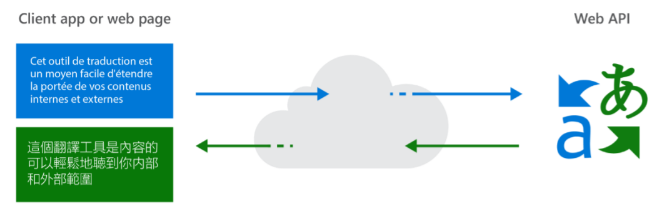
The great security and compliance features in Azure Translate meets the security requirement as below:
- Customer data isn’t written to persistent storage. This meets requirement number 5 above.
- View and delete your custom data and models at any time. This meets requirement number 6 above.
Limitations
Now Azure Translator service has natively met 2 of 5 the requirements without writing any code. So, let’s talk about some challenges:
- API Limit: Azure Translator Service has an API Limit of 5,000 characters per call. In HTML, where the tags-to-text ratio is high, a good text to HTML ratio is anywhere from 25 to 70 percent. This means we may easily hit the 5,000 character limit with just a call to translate the HTML header, if the header has reasonably large content.
- Maintain the structure of HTML document. This means we need:
- To inspect the overall content and decide what needs to be translated first.
- To skip certain tags and content.
- To change LTR/RTL alignment between languages.
Solution
There is a great Document Translator WPF application developed by the Microsoft Translator Engineering team that will do the document translation, but this will require users to manually import files. This app cannot scale to the thousands of documents that need to be translated as fast as possible.
My idea was to use the following the components:
- Azure Blob Storage to store both source documents and translated documents.
- Azure Function to run the code that orchestrates the translation.
- Reuse the business logic in the Document Translator after porting it to .NET Core to run in Azure Functions.
- And of course, the Azure Translator API.
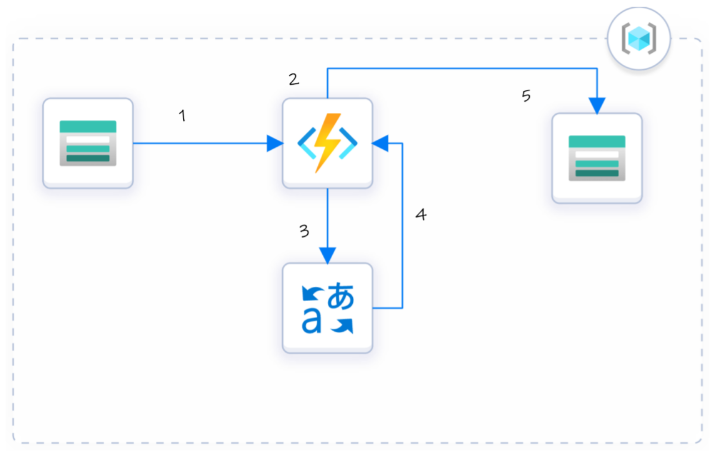
The sequence will be as follows:
- Ingestion: Users will upload documents to an Azure blob container. This is like a virtual folder.
- Initial processing by Azure Function:
- Azure function will be triggered when a new, supported file (HTML/TXT), is uploaded in that container. You can learn more about Azure Function Triggers and Bindings on Microsoft Docs.
- It will determine the source language and destination language, and runtime configurations like the API key.
- It will then route the processing depending on the file type as below:
- //Translate
- switch (FileExtension)
- {
-     case ("html"):
-         TranslatedContent = HTMLTranslationManager.DoContentTranslation(ContentToBeTranslated, FromLang, ToLang);
-         break;
-     case ("htm"):
-         TranslatedContent = HTMLTranslationManager.DoContentTranslation(ContentToBeTranslated, FromLang, ToLang);
-         break;
-     case "txt":
-         TranslatedContent = DocumentTranslationManager.ProcessTextDocument(ContentToBeTranslated,FromLang,ToLang);
-         break;
-     default:
-         break;
- }
-
- For HTML:
- It will manipulate the content and decide what to translate and what to skip.
- It will then send batches of requests to the Translate API of 5,000 characters or less to translate.
- For TXT files:
- It will then slice the content into batches of 5,000 characters and send it to the API.
- Lastly, it will concatenate the result in the same sequence they were sent, then correct the alignment and format depending on the output language.
- Then it will output the translation document to a different Azure Blob container.
- For HTML:
The Code
The source code for the project is available on GitHub.
To run the application, you need to:
- Git clone https://github.com/saffiali/AutoTranslateBlobs.git
- Open in Visual Studio or VSCode
- Create/Change local.settings.json file to include the following:
1. "AzureWebJobsStorage": "",
2. "FromLang": "Auto-Detect",
3. "ToLang": "Arabic",
4. "AzureTranslateKey": ""
About the Author
Saffi is Cloud Solution Architect at Microsoft. He is part of the App Innovation team and is SME for Azure App Development, Azure Blockchain and Azure Integration Services. You can follow him on LinkedIn and Twitter.